
Inviting users
Give people access to a company, a website, a team or your agency, and follow up on invitations and join requests.
You give people access in Accounts, at the level that fits: a whole company, a single website, a team, or your agency. New people get an email invitation. People who already work in the company can often be added straight away.
Before you start
To invite to a company, you need to be its owner or admin, or an owner or admin of its agency.
To add people to a website, you need the Manager role on that site, or be a company owner or admin.
To invite agency staff, you need to be an agency owner or admin.
Decide on the role first. See Roles and permissions explained.
Where to add people
Level | Where | How it works |
|---|---|---|
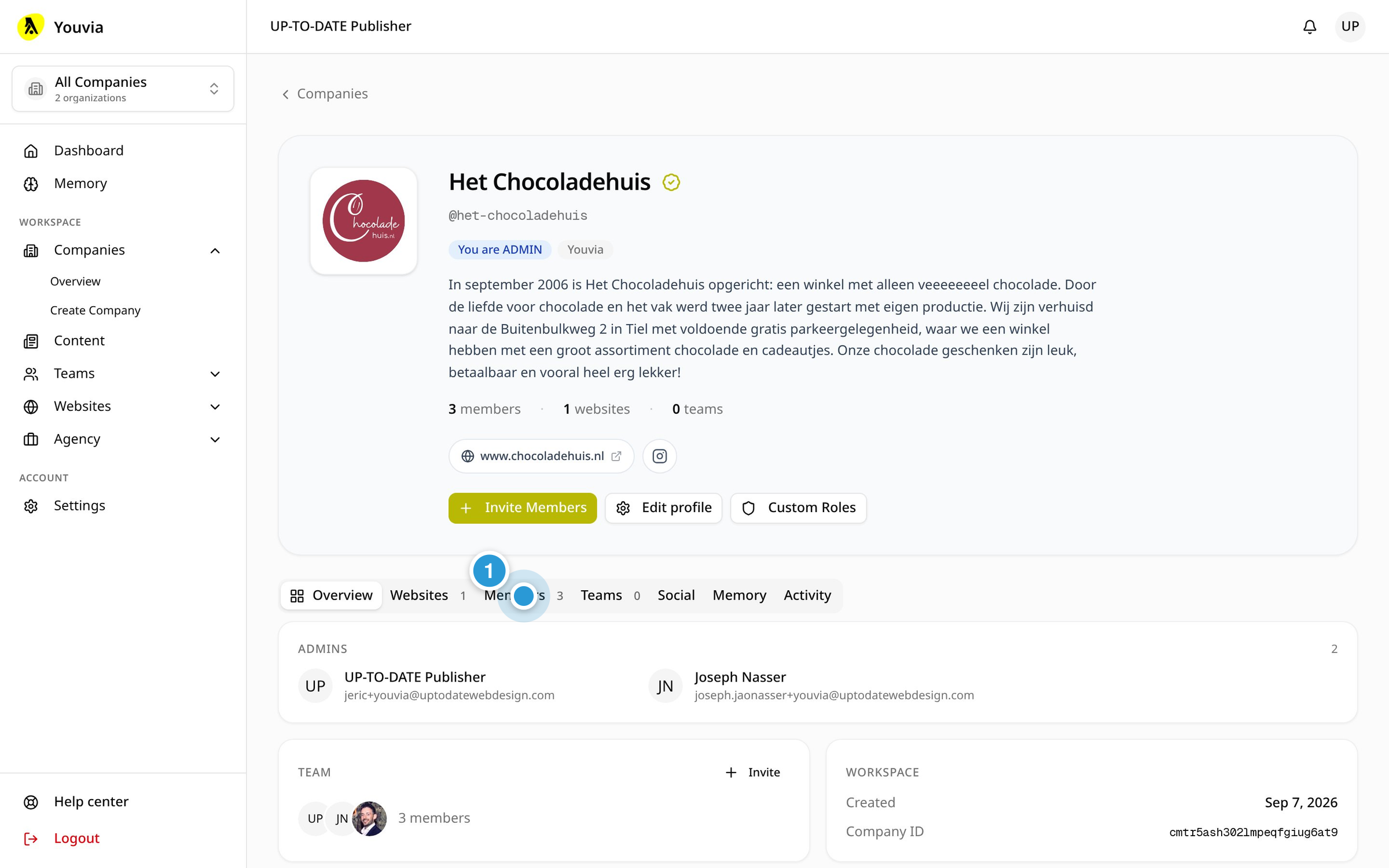
Company | Company › Invite Members | Email invitation, with a company role and per-website access |
Company (existing account) | Company › Members › Add existing account | Added at once, no email to accept |
Company (same access as someone else) | Company › Members › a member's menu › Copy access to someone new | Email invitation with the access you copy from that member |
Website | Website › Members › Invite Member | Company members added at once, new emails invited |
Team | Team › Add Member | Pick from the company's members |
Agency | Agency › Members › Invite Member | Email invitation |
Invite people to a company
Open the company and click Invite Members.
Under Email Addresses, search with Search by name or email…. People already known appear under People you know. To invite someone new, type their full email address and choose Invite followed by the address, under Invite by email. Add as many people as you like.
Choose the Role in the company:
Admin: manages the company and reaches every website it owns.
Member: reaches only the websites set below.
For a Member, check Website access for each site: No access, Manager, Editor, Author, Reporter or AI User. Every website starts as AI User. Pick another role, or No access, where needed.
Optionally add a Personal Message (Optional).
Click Send Invitation (or Send 3 Invitations when you invite several people).
Important: A Member is given AI User on every website of the company unless you change it. Set No access on the websites they should not see. You can change this later on each website's member list.
Add an existing account without an invitation
Use this for your own colleagues, or to add yourself. A client joining their own company should still get an invitation.
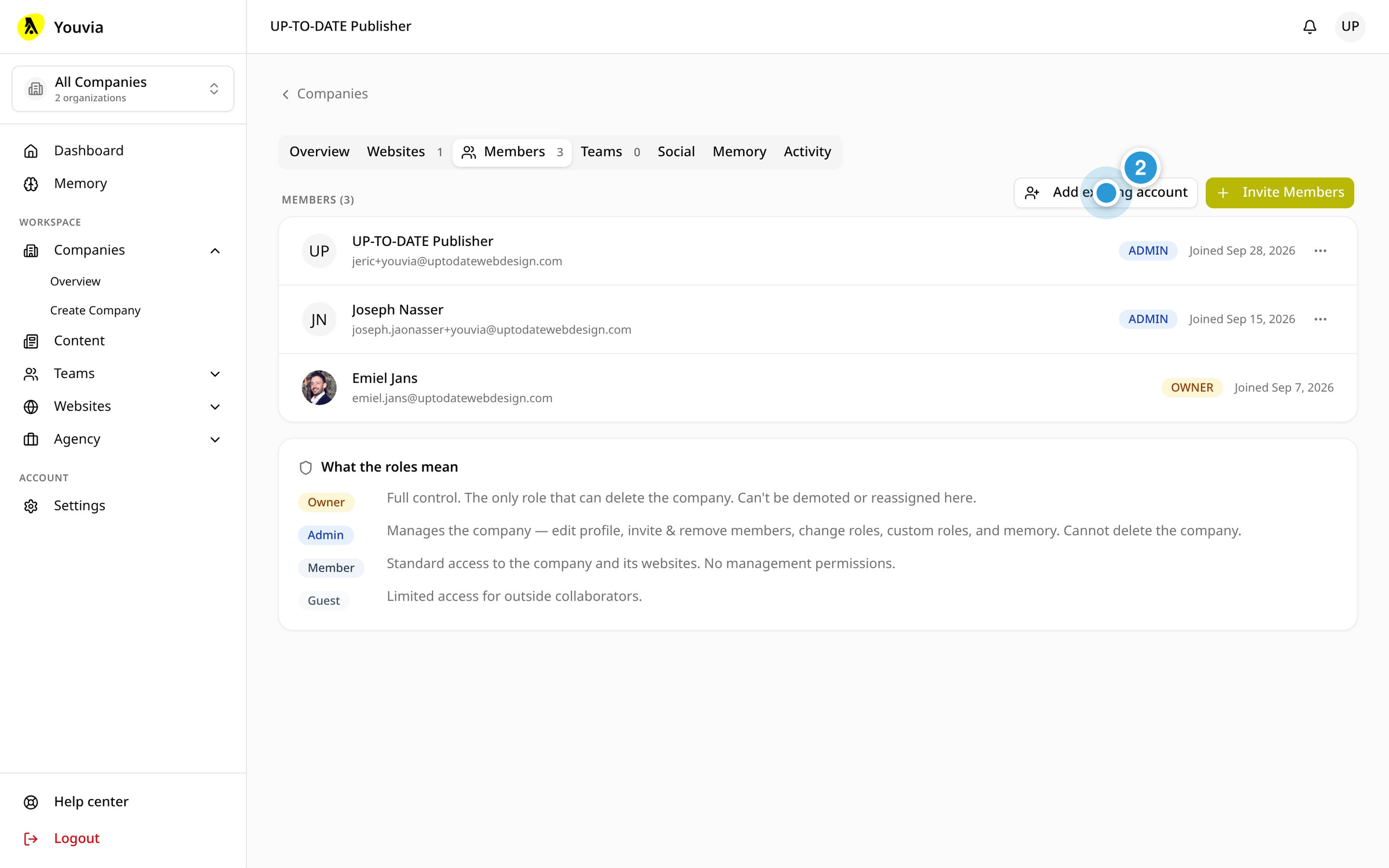
Open the company and go to Members.
Click Add existing account.
Choose the role in the dropdown: Admin or Member, the same roles the invite form offers.
Type the person's full email address in Search all accounts by name or email and choose Add by email address. Or click Add me to add yourself.
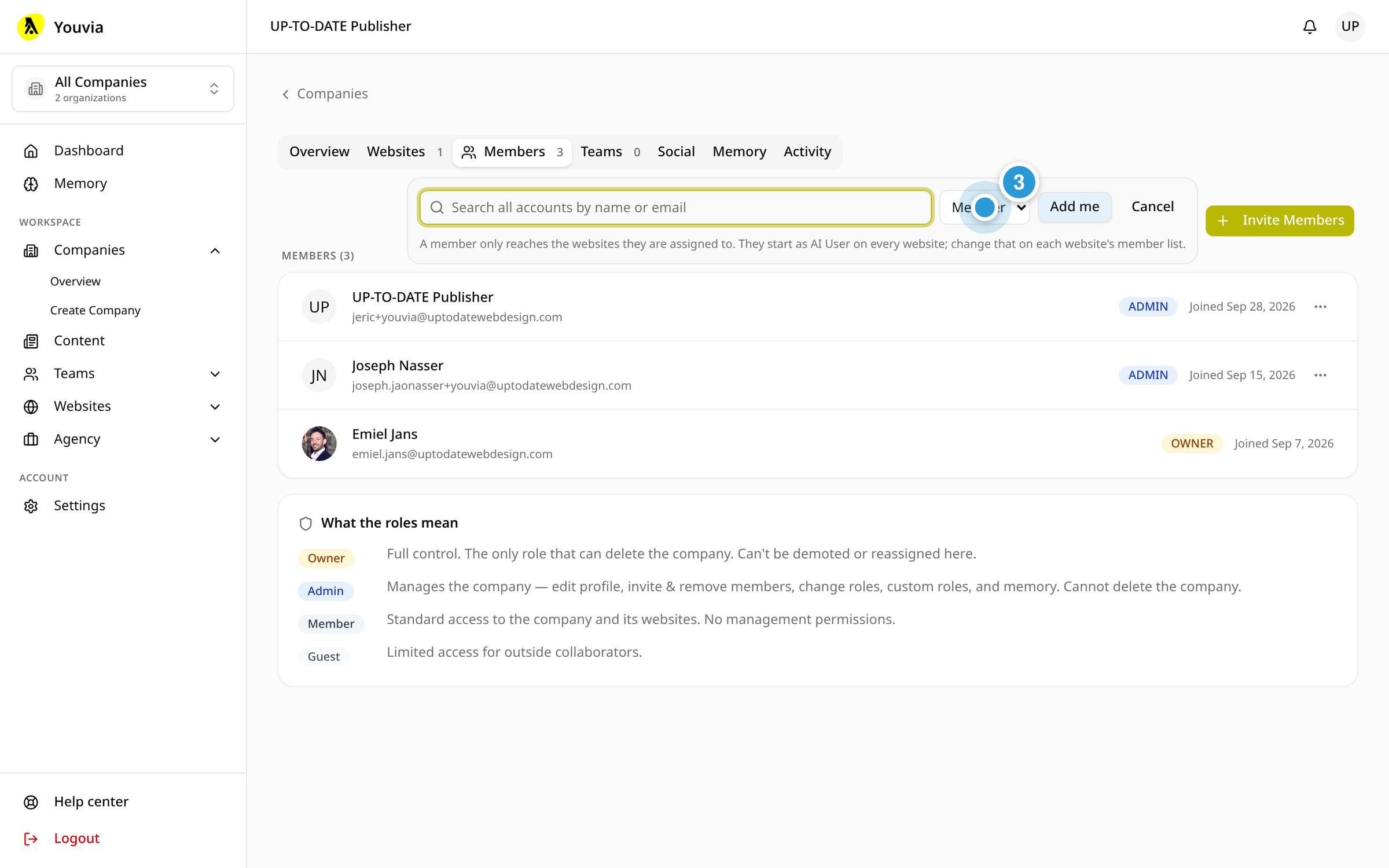
The person is added immediately and no acceptance is needed. A Member added this way starts as AI User on every website; change that on each website's member list. You see for example "Anna added as Member, AI User on 3 websites".
Note: Searching other accounts by name is not available to agency staff. Type the full email address.
Give someone the same access as a colleague
Open the company and go to Members.
Open the menu of the member whose access you want to copy and choose Copy access to someone new.
Enter the Email of the new person.
Under Access to copy, check what they should get. An owner's role is copied as admin.
Click Send invitation.
When they accept, they get the access you copied.
Add someone to one website
Open the website and go to Members › Invite Member.
In Member, search for a name or email.
People who already belong to the company appear under Existing members. They are added immediately and notified by email.
For someone new, type their email and choose Invite. They get an invitation to accept.
Choose the Role. The default is Reporter. The panel on the right explains what each role can do.
If the company has custom roles, you can switch on Use a custom role instead and pick one.
For email invitations, optionally add a Personal Message (Optional).
Click Add Member or Send Invitation.
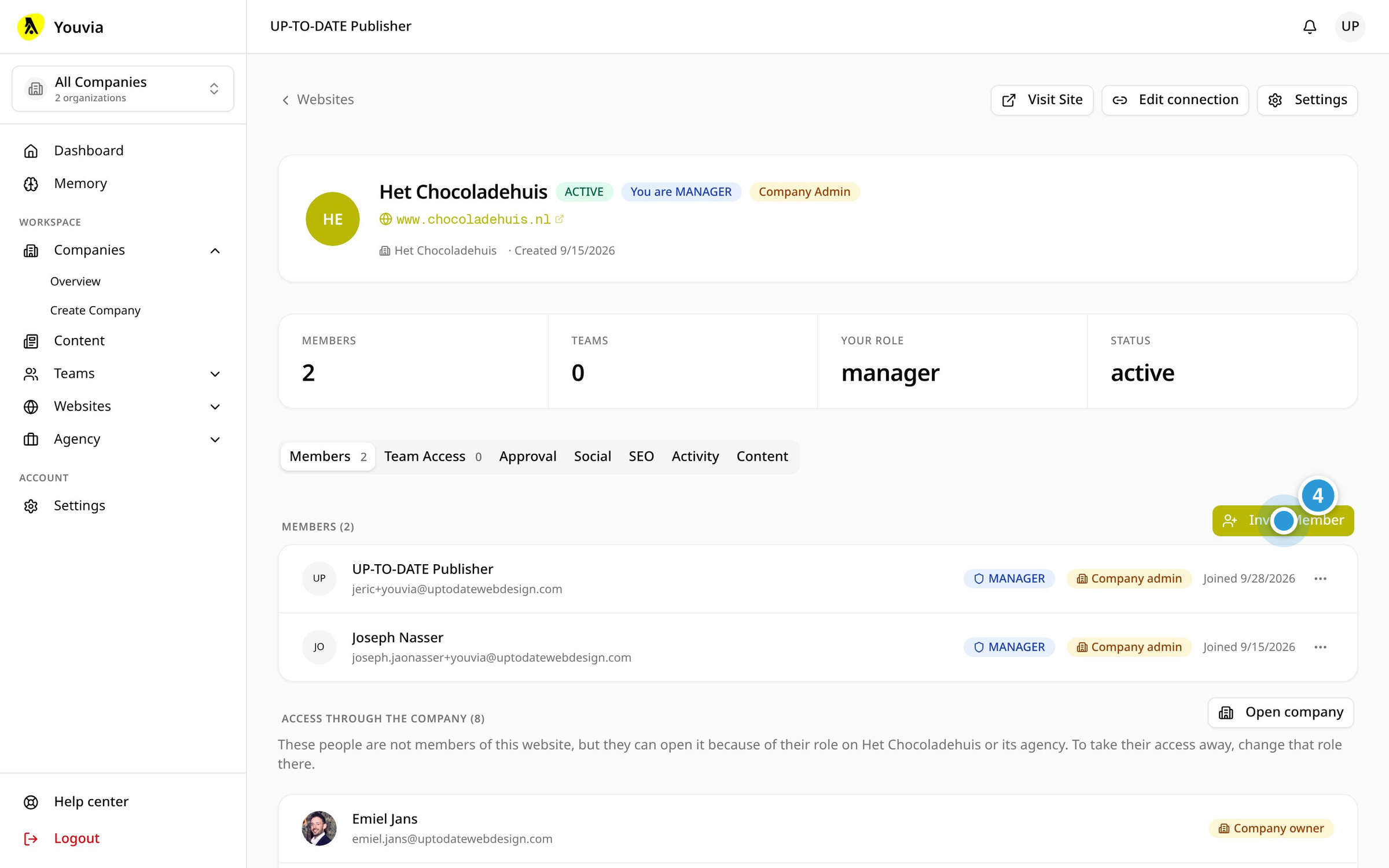
The website's Members tab also has a list Access through the company: people who can open the site because of their role on the company or its agency. They are not members of the website itself, so you can't remove them there. Change their role on the company or agency instead.
Add someone to a team
Team members come from the company's members.
Open the team and click Add Member.
Choose the Company Member and the Team Role.
Click Add Member.
If you see "All company members are already in this team", invite the person to the company first. See Creating teams and linking them to websites.
Invite someone to your agency
Go to Agency › your agency › Members.
Click Invite Member.
Enter the Email Address and choose the Role: Member (belongs to the agency) or Admin (can manage the agency and its members).
Click Send Invitation.
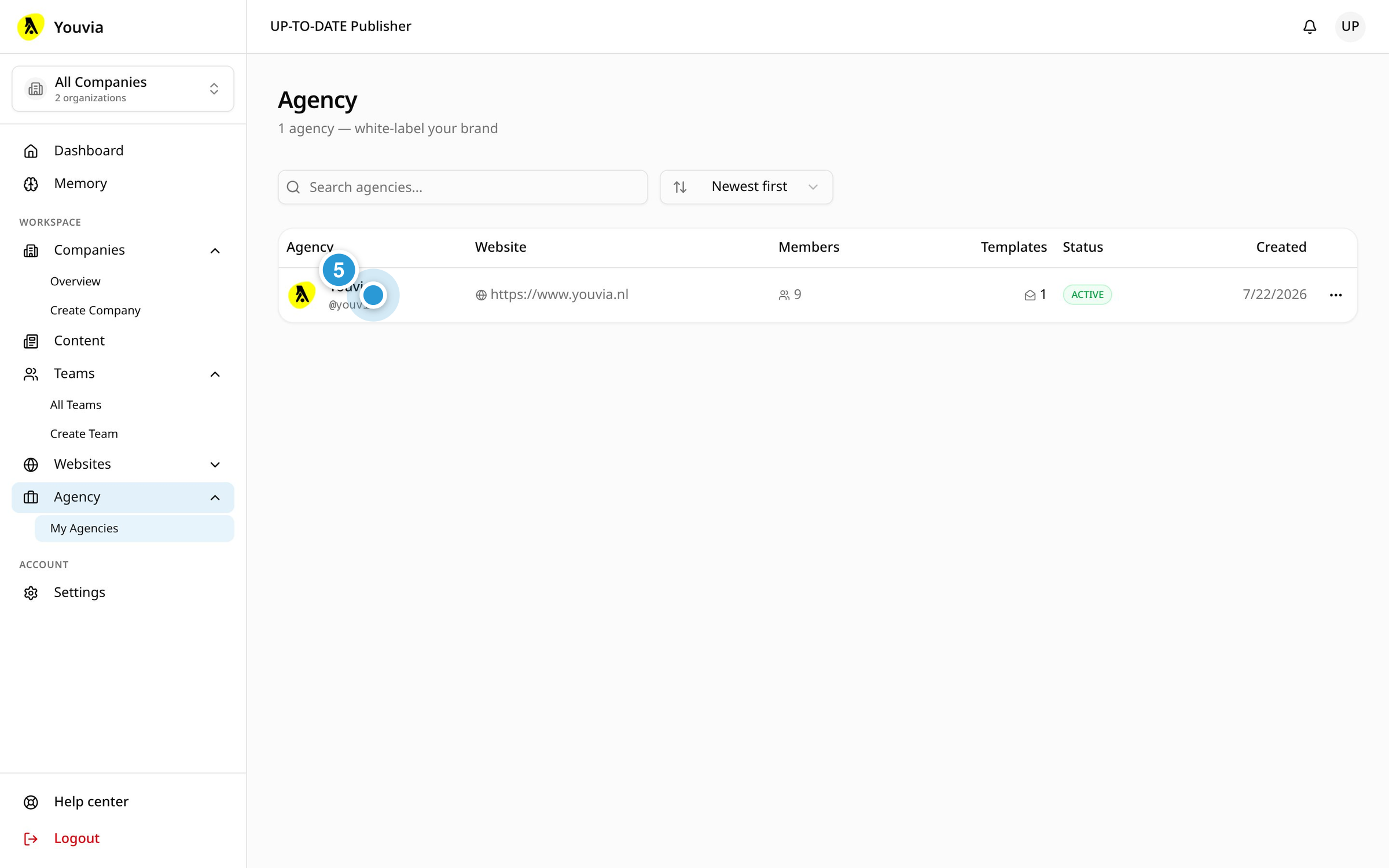
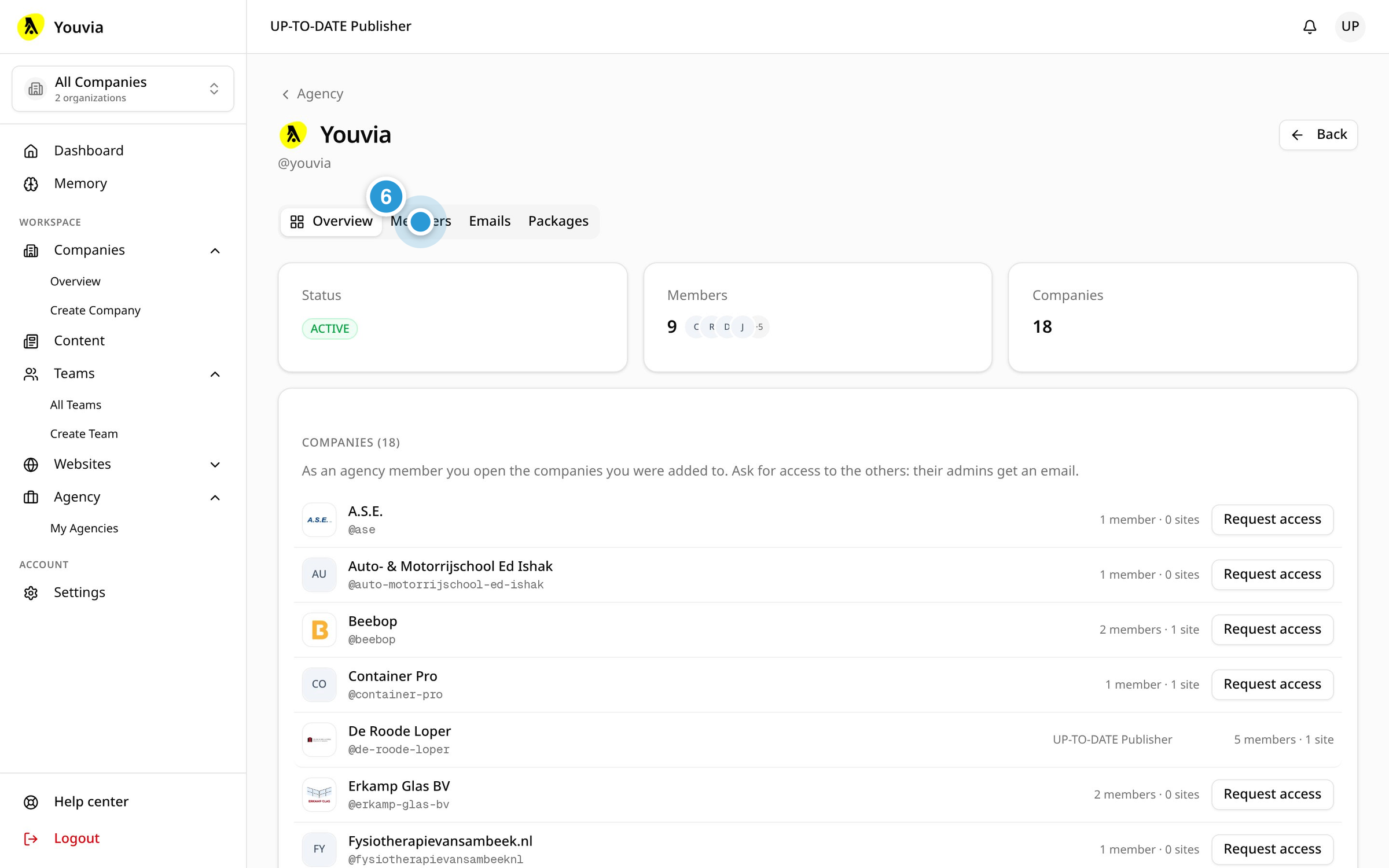
To change someone's agency role later, click Make admin or Make member on their row.
Note: A person can belong to more than one agency. The invitation is refused only when they are already a member of your agency ("This user is already a member of this agency") or already have an invitation waiting ("An invitation has already been sent to this email").
What the invitee sees
The invitation email carries your agency's branding. The link opens a page, also in your branding, titled You're invited, which says who invited them, to what, and with which role.
If the email address already has an account, they click Sign in to accept.
If not, they click Create account & accept. The email address is locked to the invited address.
Once signed in with the right address, they click Accept invitation or Decline.
Other messages they may see:
Wrong account: they are signed in with a different email address. They need to sign out and sign in with the invited address.
Invitation expired: invitations are valid for 7 days. Send a new one.
Invitation not found: the link is invalid or the invitation was revoked.
Invitation no longer available or No invitation token: the link can't be used. Send a new invitation.
Already accepted: they already joined.
For the sign-up and first sign-in steps, see Signing in to your account.
Resend or revoke an invitation
On the company's Members tab (and the Overview tab), Pending invitations lists each invite with its role, who sent it and when it expires. Click Resend or Revoke.
On the agency's Members tab, pending agency invitations have the same Resend and Revoke buttons.
On the Invitations page, the Sent tab has Resend email for pending invitations.
A member marked Pending verification has not confirmed their email address yet. Click Resend next to the badge to send the verification email again.
Join requests
People can also ask to join a company: from Companies that match your email on their dashboard, or when they try to create a company that already exists.
The company's owners and admins get an email.
Open the company's Members tab.
Under Pending join requests, click Approve or Deny.
The person who asked follows their request on the Invitations page under My Requests.
The Invitations page
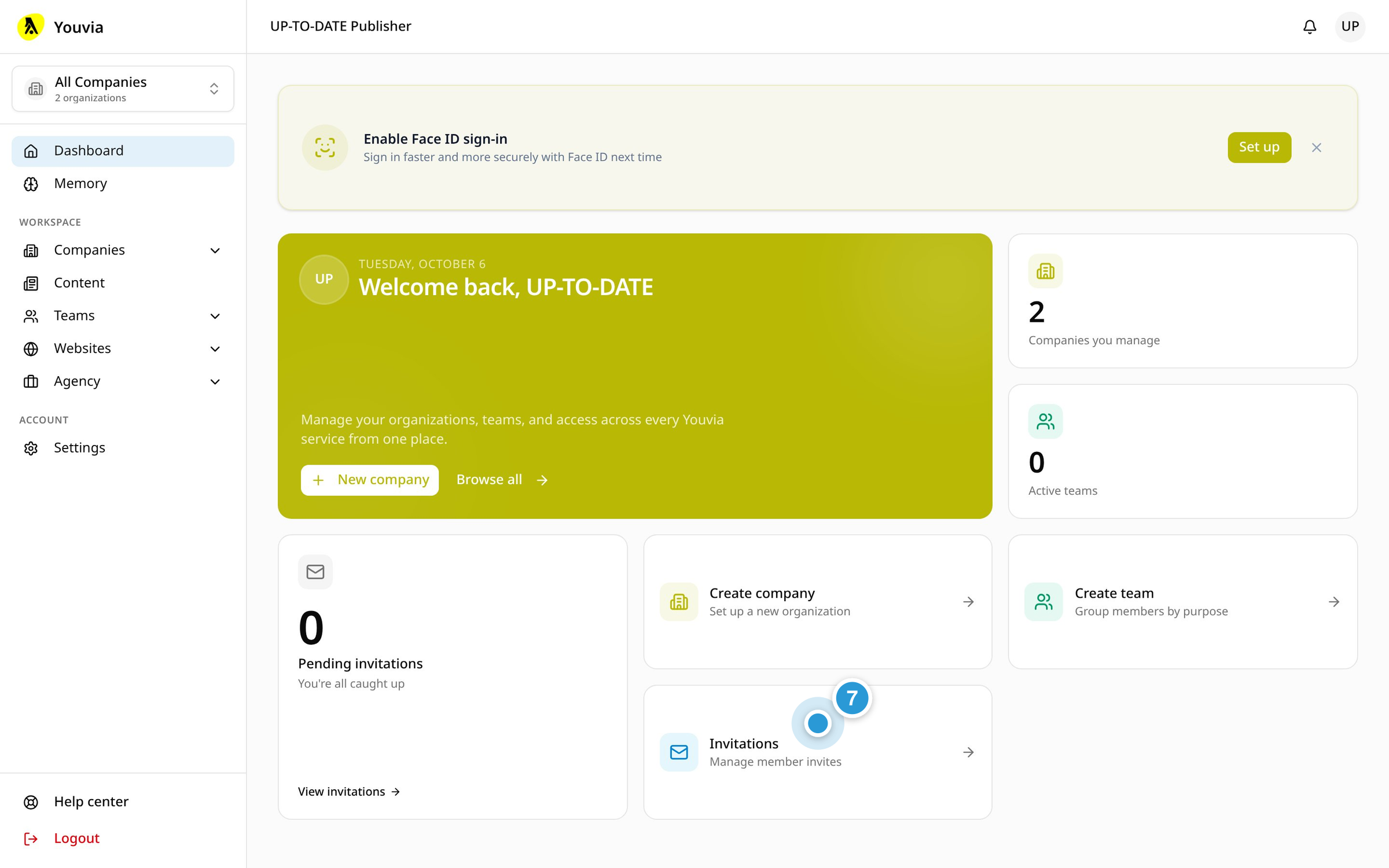
Open it from Pending invitations or the Invitations card on the dashboard.
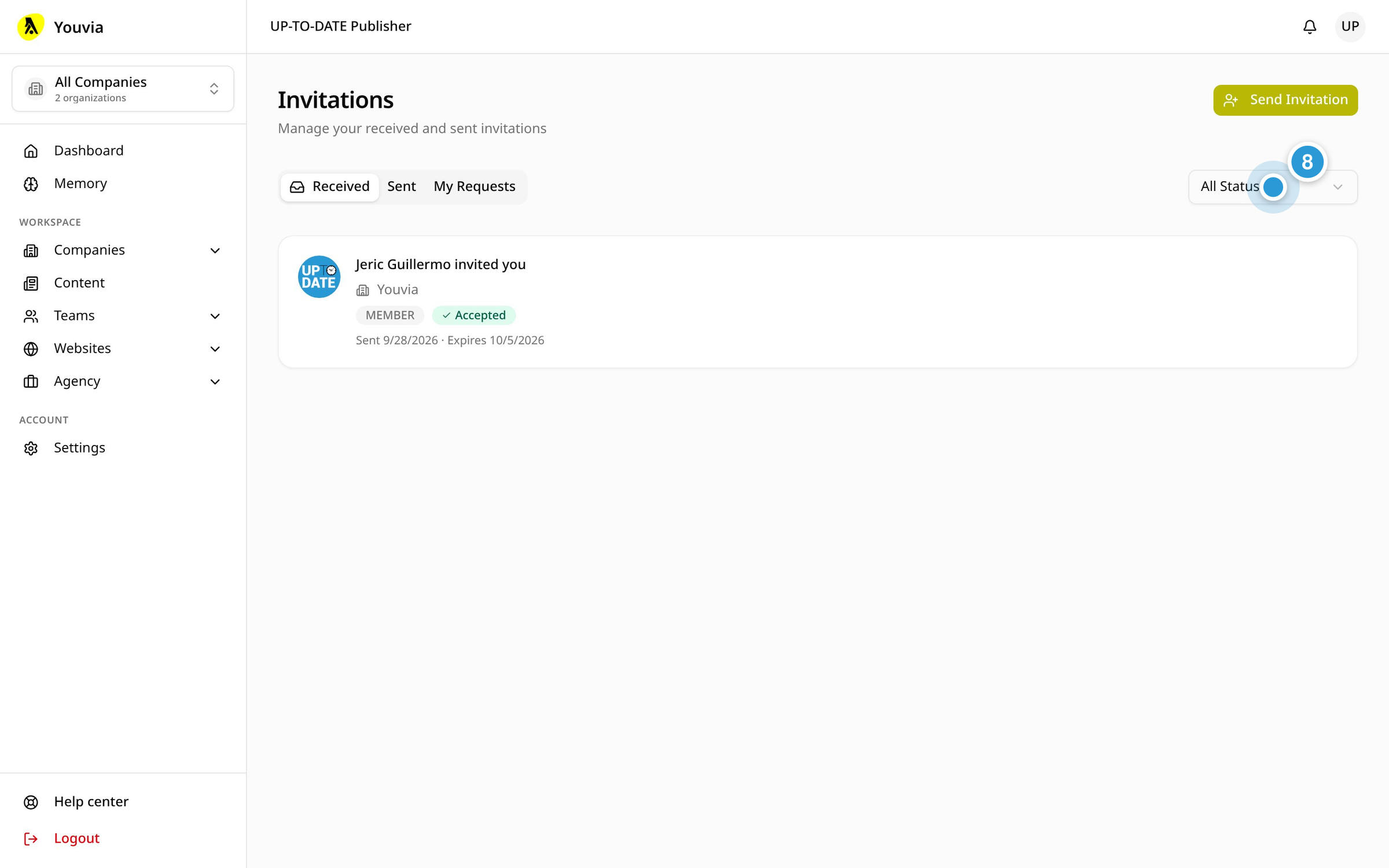
Received: invitations sent to you. Use Accept or Decline.
Sent: invitations you sent, with the status Pending, Accepted, Declined, Expired or Revoked.
My Requests: companies you asked to join, marked Awaiting approval.
Use the status filter to narrow the list. All Status shows everything.
Change someone's role or remove access
Company role: on Members, open the person's menu and pick a role under Change role: Admin, Member or Guest (limited access for outside collaborators). Guest can't be chosen in the invite form.
Company: on Members, open the person's menu and choose Remove from company. They lose access to the company's websites and teams right away. Their account stays, and you can add them back later.
Website: on the website's Members tab, open the menu and choose Remove member.
Team: on the team's member list, choose Remove from Team.
Agency: on the agency's Members tab, click the remove icon next to the person. The agency owner can't be removed.
The company's Members tab also lists Site members: people who have a role on one of the company's websites but are not members of the company. Manage them on the website.
In the new dashboard
The same screens open in the new dashboard under Settings › Users and roles. See Invite people and choose their roles.
Related articles
Did this answer your question?