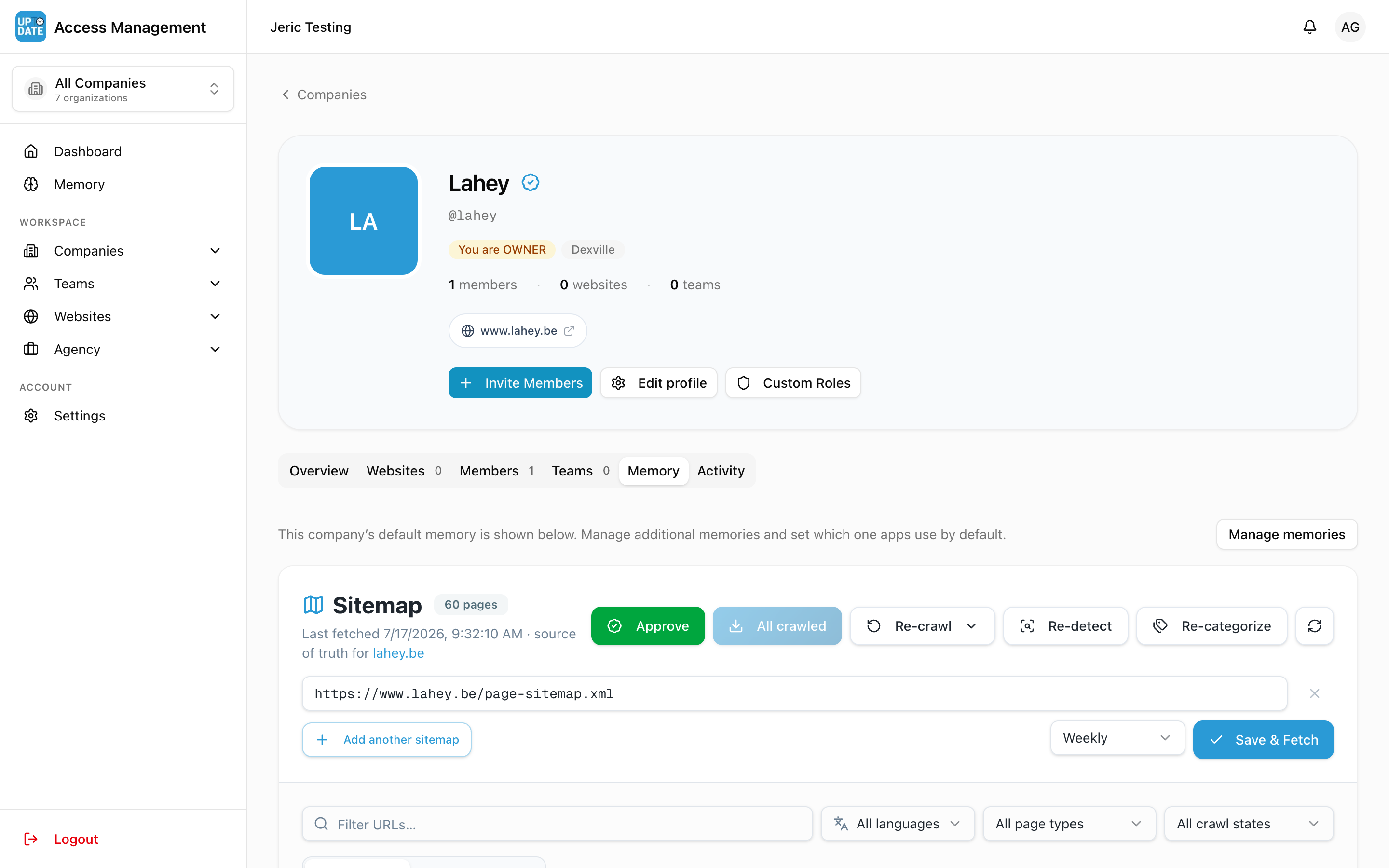
When a client's website is crawled, its pages are read into AI Memory and sorted by page type. Before the company's memory counts as Ready, someone at your agency reviews the result and approves it. This article shows how.
Before you start
You need edit rights on the company's memory: company owner or admin, agency owner or admin, or a member with Can edit memory. See Roles and permissions explained.
The company needs a website URL or a connected website.
Read the Memory status
On Companies > Overview, the Memory column shows each client's state.
What you see | What it means |
|---|---|
Crawl button | Not crawled yet, and you can start it |
Not started | No crawl yet: no website on file, or you don't manage this company |
In progress | Crawling now, some pages are still being read in |
To verify | The crawl finished. Review the result and approve it. |
Ready | Done and approved. The website is in the company's AI memory. |
The details button next to the status shows why a company is in that state. If a crawl stopped part-way, it offers Resume crawl.
Start a crawl
Right after creating a company, click Yes, crawl my website on the setup page.
Or click Crawl in the Memory column. For a company with several websites, choose a site or Crawl all.
If the site looks like a blog subdomain, a window suggests crawling the main site instead. The main site usually gives better memory.
The crawl runs in the background. The person who started it gets an email when it finishes.
Review and approve
In the Companies list, click To verify. The company's Memory tab opens on the Sitemap screen.
Check the page list. Use All languages and All page types to filter, and check that the important pages (products, services, about, contact) are there with the right page type.
When every enabled page is crawled and sorted, the Approve button appears. Click Approve.
The status changes to Ready and the screen shows Approved.
When approval is refused
If no page was sorted as a product or a service, you see a warning that starts with Not approved yet. This usually means only part of the site was found.
Click Look for more sitemaps to search the site again.
If the client really sells no products or services (a club, an association), click the approve anyway button in the warning.
Re-crawl or refresh
Use these buttons on the Sitemap screen after a site relaunch or a big content update:
Re-crawl > Re-crawl & re-extract content: reads every page again (uses the cache).
Re-crawl > Clear cache & re-crawl: forces a fresh fetch of every page.
Re-detect: finds the site's sitemap again and re-scans it.
Re-categorize: sorts all pages into page types again, without crawling.
The refresh icon (Re-fetch sitemap): checks the sitemap for new pages.
Crawl enabled: crawls enabled pages that were not crawled yet.
If a refresh finds new pages, the approval is cleared and the company goes back to To verify, so the new pages get reviewed.
For how pages are found and sorted, see How the sitemap is retrieved and How the app crawls and categorizes pages.
After approval
The crawl fills in what a website can tell. Complete the rest of the memory next: the company profile, branding and the house rules for writing. See Completing the company profile and Setting up Company Branding.