Accounts (accounts.uptodateconnect.com) is where your agency manages its clients, their websites, the people who work on them and your own branding. The same account signs you in to every other app, including the AI App. This article walks through every screen an agency owner or admin uses. The other articles in this category go deeper into each task.
The layout
After you sign in you always see three areas:
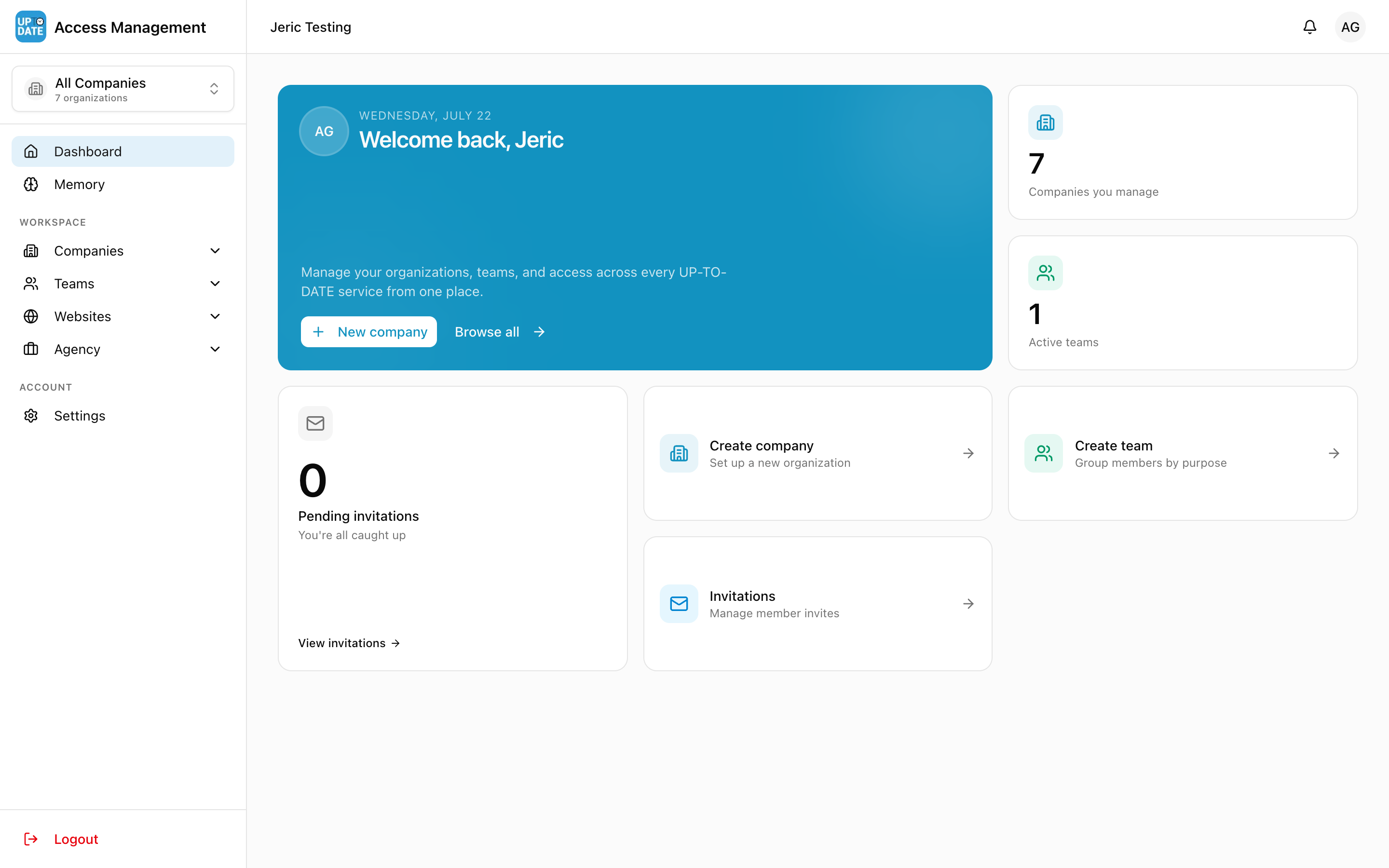
The sidebar (left). At the top is your agency's logo and name. Click it to go back to the dashboard. Below it sits the company switcher, then the menu, and Logout at the bottom. On a phone, the sidebar opens from the menu button in the top-left corner.
The top bar. Your name on the left. On the right, a bell icon that opens your settings, and your avatar menu with Profile, Settings, Submit Feedback and Log out.
The content area. The page you opened.
The company switcher
The company switcher sits directly under your agency logo. It shows the selected company, or All Companies with the number of organizations you can reach.
Click it and type in Search company... to find any client, even in a long list.
Pick a company to make it your working context. This does not open a new page. The Memory page follows the company you select here.
Pick All Companies to clear the selection.
Create Company at the bottom of the list starts a new client.
Tip: Before you work on a client's memory, check the company switcher. Most "why do I see the wrong memory?" questions come from a different company being selected.
The sidebar menu
Dashboard: your home page.
Memory: AI Memory for the selected company, plus your personal memory.
Workspace
Companies: Overview and Create Company
Teams: All Teams and Create Team
Websites: All Websites
Agency: My Agencies (only shown when you belong to an agency)
Account
Settings: your profile, password and sign-in security
The menu is the same for every role. Your role decides what you can do on each page, not which menu items you see.
Dashboard home
Companies that match your email appears when a company uses the same email domain as you. Use Request to join if you belong to it.
The welcome tile has New company and Browse all (all companies).
Companies you manage and Active teams show counts and link to the lists.
Pending invitations shows invitations waiting for you, marked Action needed, plus any join requests you sent that still wait for approval. Click View invitations to open the Invitations page.
Quick cards: Create company, Create team and Invitations.
Note: The Invitations page is not in the sidebar. Open it from the Pending invitations tile or the Invitations card on the home page.
Memory
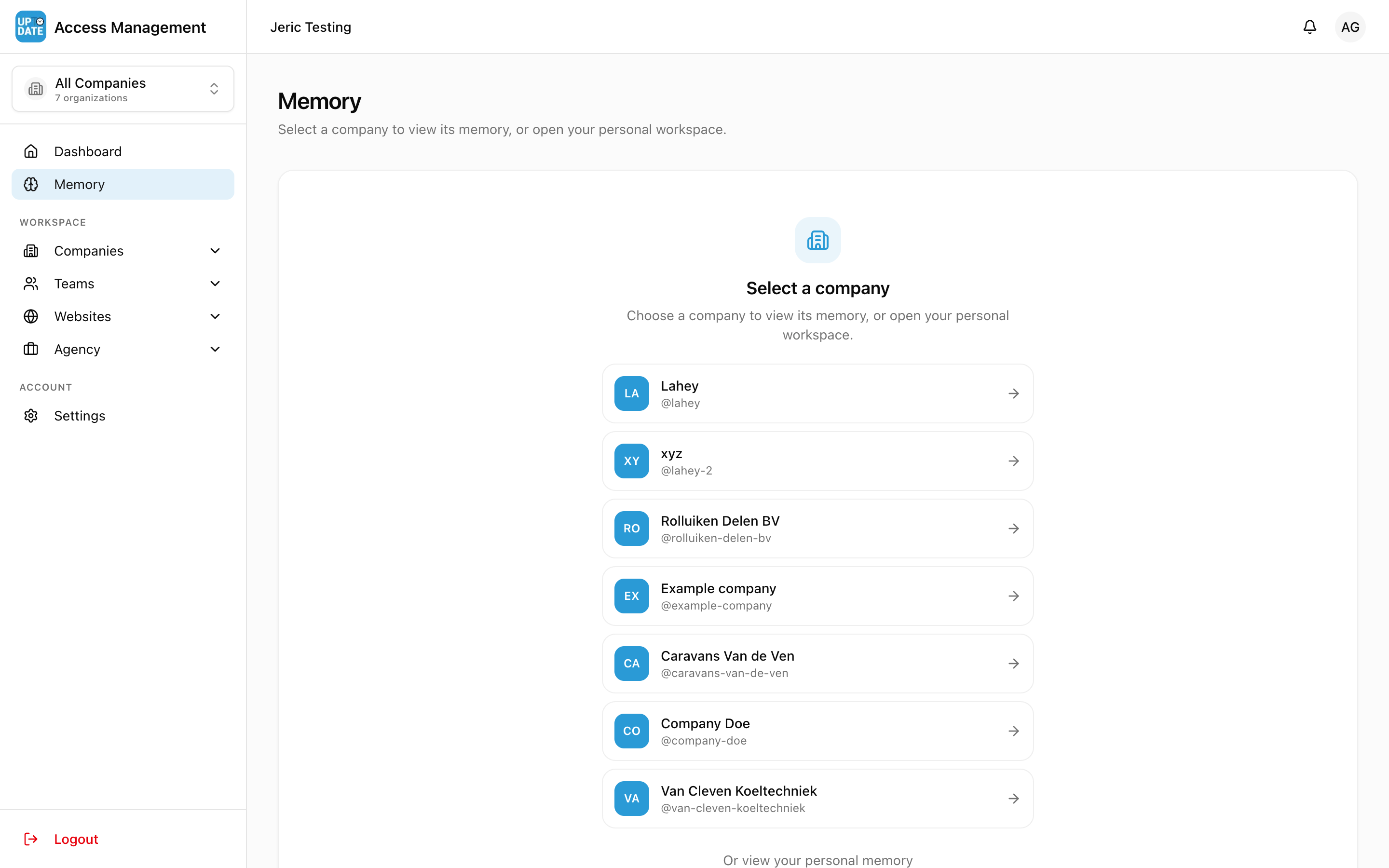
With a company selected, the Memory page shows three tabs: the company's name (its AI Memory), Personal and AI Profile. If you can manage the company (as its owner or admin, or through your agency), a Manage memories button opens the list of that company's memories.
With All Companies selected, the page asks you to Select a company first. You can also choose Or view your personal memory. See What AI Memory is and how it is organised.
Companies
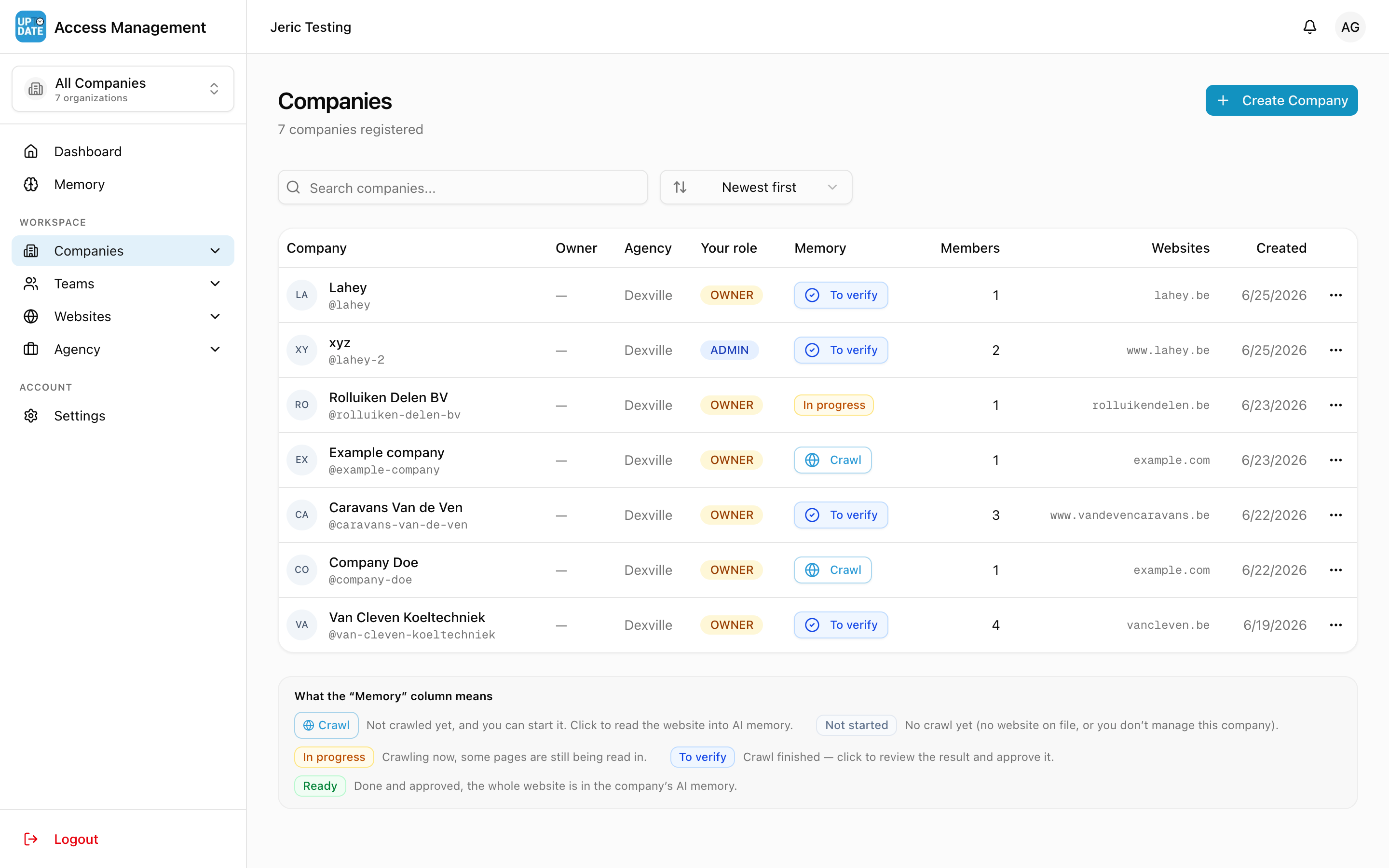
Companies > Overview lists every client you can reach.
Search with Search companies and sort with the sort menu (Newest first, Oldest first, Name A → Z, Most members and more).
Column headers sort or filter the list. The advanced filter has Search in with Agency-managed only, and the Your role filter has Agency oversight for companies you reach through your agency.
Columns: Company, Owner, Agency, Your role, AI, Memory, Members, Websites and Created. AI shows whether the company's AI subscription is Active or Off. Memory shows the crawl status; see Approving a website crawl. Website domains that look like staging or test sites are highlighted with a warning sign.
The row menu offers View details, Settings and Members.
Choose 25, 50, 100 or 200 rows per page at the bottom.
A company page
The header shows the company's logo, name, your role (for example You are Owner), its agency, member, website and team counts, and its website and social links. Owners and admins also see Invite Members, Edit profile and Custom Roles.
The tabs:
Overview: the company's admins, pending invitations, a team preview, workspace details, its websites (with Add a website) and its social pages (with Open).
Websites: all connected sites, with Connect a Site.
Members: members, join requests, pending invitations and a "What the roles mean" legend. See Inviting users.
Teams: the company's teams, with Create Team.
Social: the company's connected social media pages. See Connecting social media accounts.
Memory: the company's default AI Memory, with Manage memories.
When you reach a company through your agency but are not listed as a member, the page says so and offers Add me as admin. See Managing companies and websites.
Teams
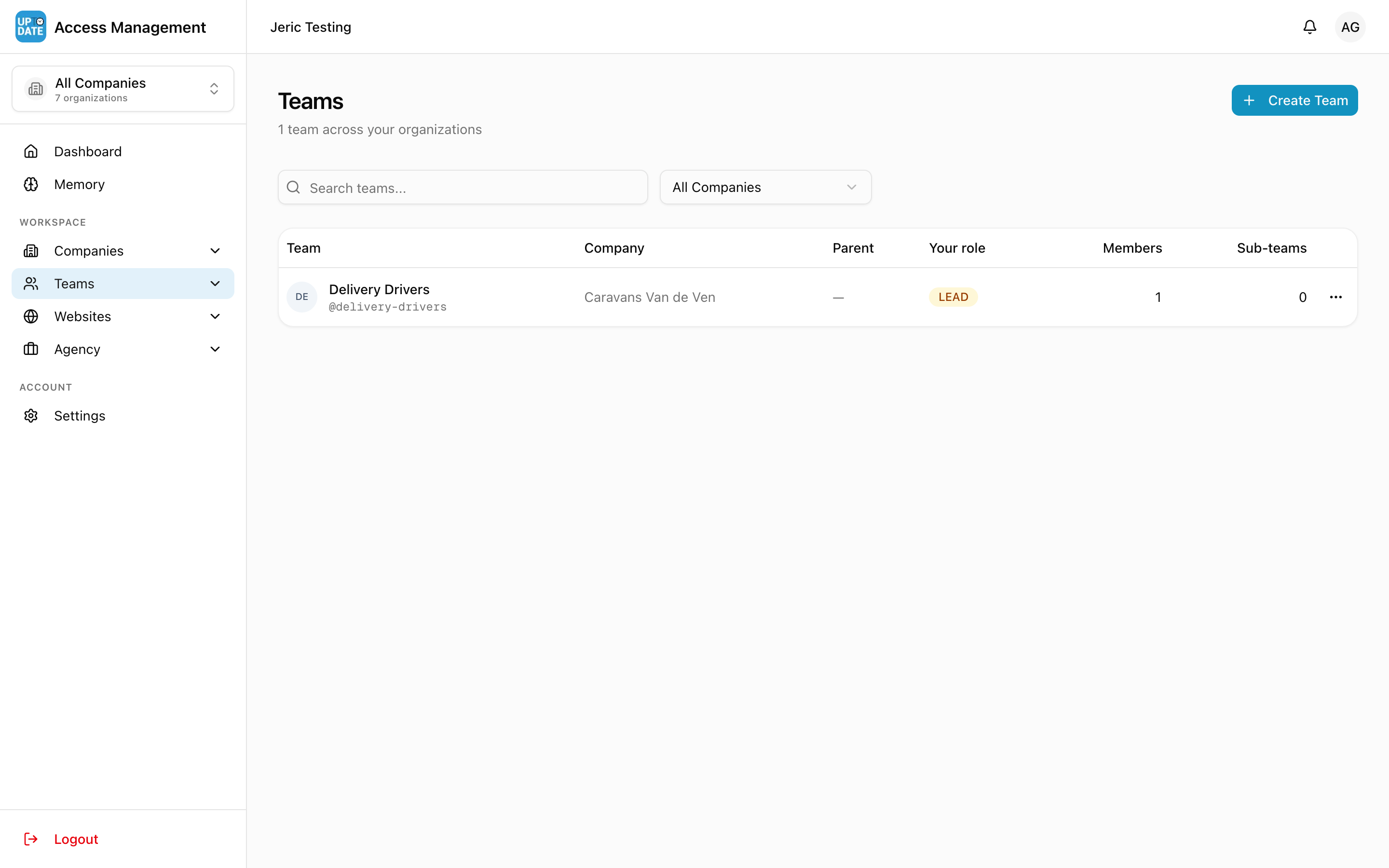
Teams > All Teams lists teams across your clients. Search with Search teams... and filter by company. Columns: Team, Company, Parent, Your role, Members and Sub-teams.
A team page has a Settings button, counts for members and sub-teams, and the tabs Members (with Add Member) and Sub-teams (with Create Sub-team). See Creating teams and linking them to websites.
Websites
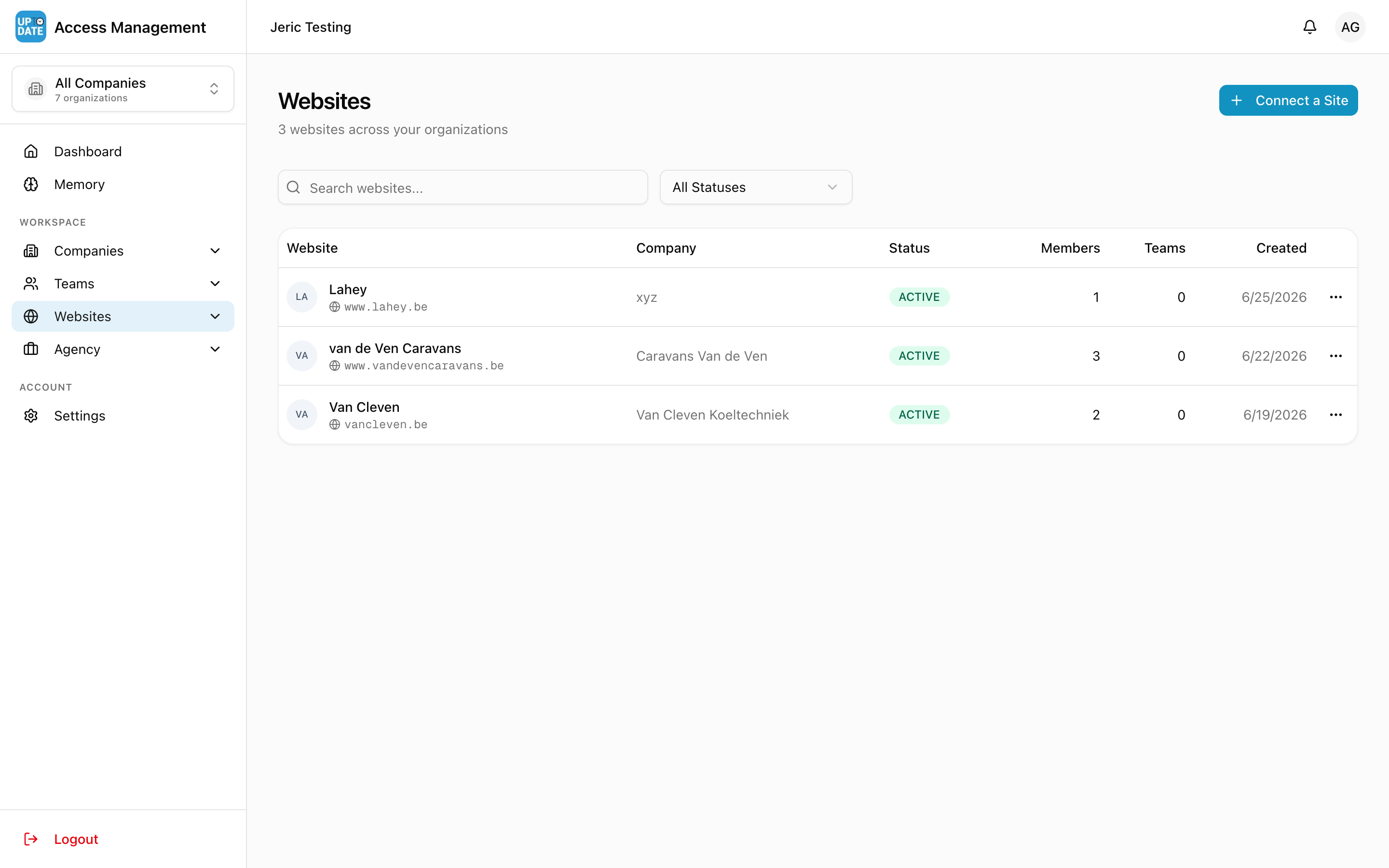
Websites > All Websites lists every connected site. Search with Search websites... and filter by status (Active, Maintenance, Suspended, Archived). The row menu offers View details, Settings, Members, Move to company and Visit website. Connect a Site first asks which company the site belongs to.
A website page has Visit Site, Edit connection (company owners and admins) and Settings, and four tabs:
Members: people with a role on this site. Managers change roles from the row menu (Make Manager, Make Editor and so on) or use Remove member.
Team Access: teams with a role on this site, with Grant Team Access.
Approval: the default reviewers for this site. See Setting approvers per website.
Social: which of the company's social pages publish to this site. Only shown if you can manage the company. See Connecting social media accounts.
Agency
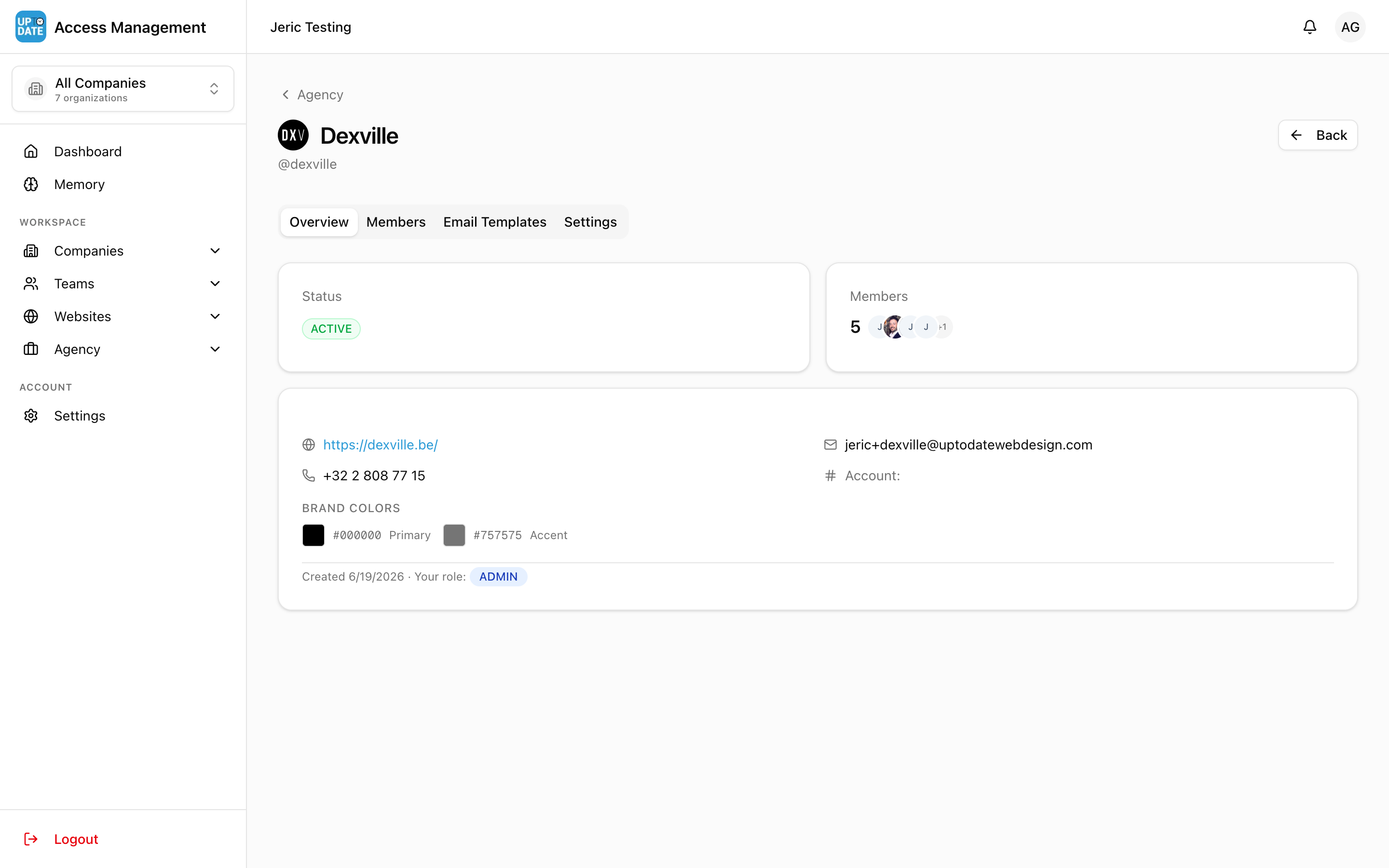
Agency > My Agencies lists your agency. Open it to see these tabs:
Overview: status, member count, the companies under your agency (with member and site counts), contact details, brand colors and your role.
Members: your agency staff, with Invite Member.
Emails: every email the platform sends to people under your agency, with your branding and wording.
Settings: your white-label settings. Only agency owners and admins see this tab.
See White-labelling: your brand on logins and emails.
Invitations
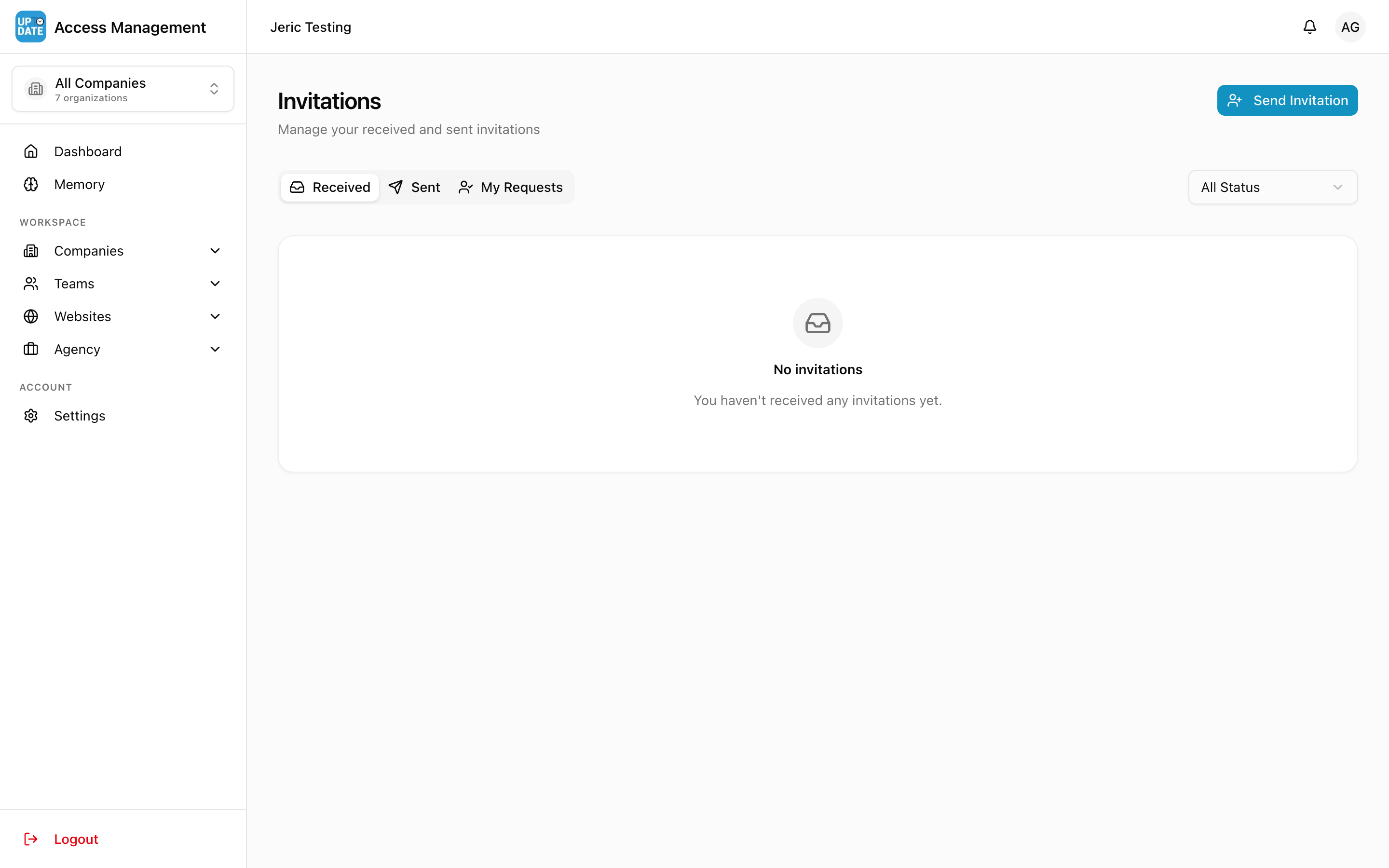
The Invitations page has three tabs:
Received: invitations sent to you, with Accept and Decline.
Sent: invitations you sent, their status, and Resend email for pending ones.
My Requests: companies you asked to join, marked Awaiting approval.
Your settings
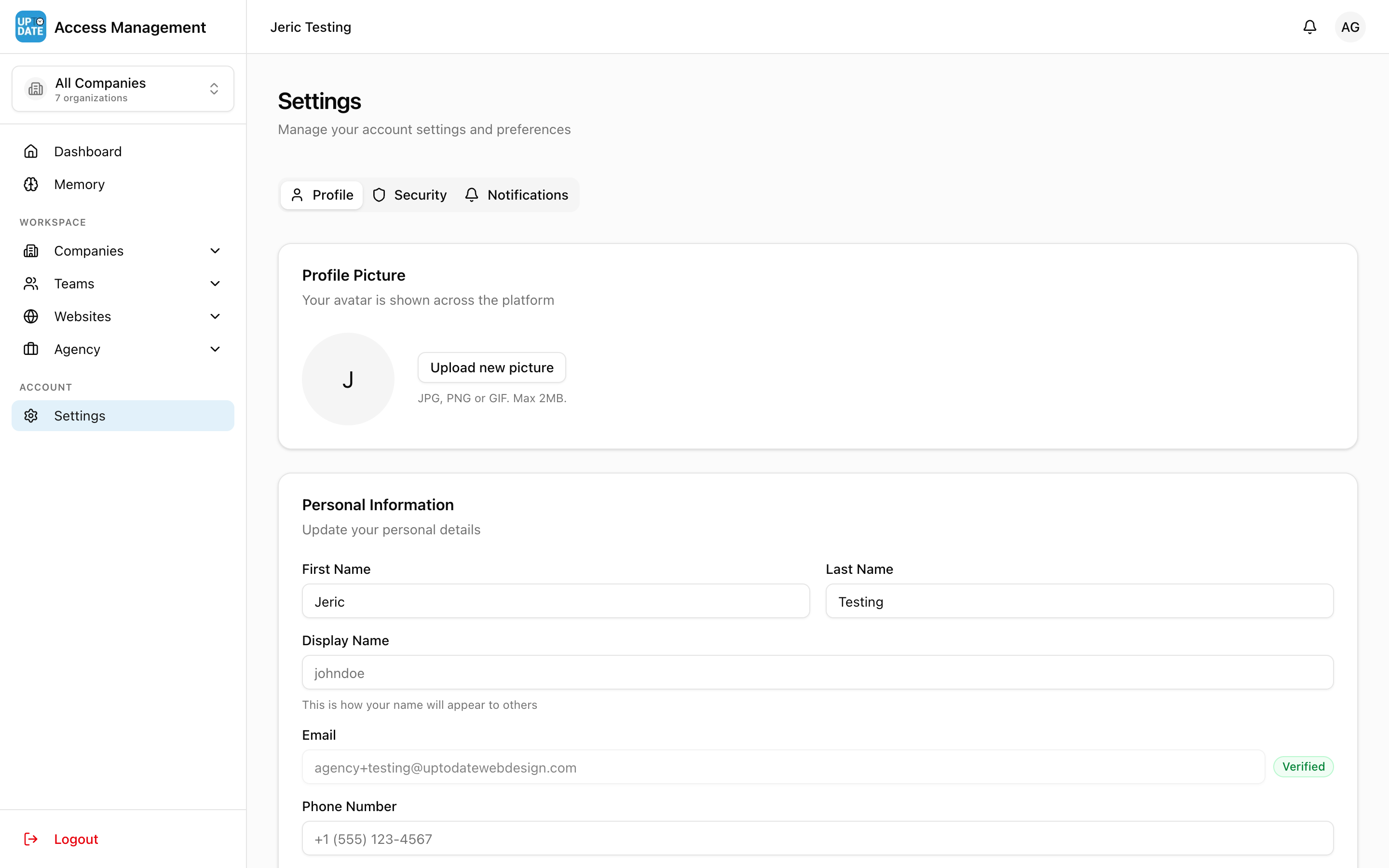
Settings has your profile and your password, two-factor authentication and passkeys. See Managing your profile, password and security.
Who sees what
Person | What they can do in Accounts |
|---|---|
Agency owner or admin | Manage every company and website under the agency, invite agency members, edit agency settings and emails |
Agency member | See the agency, its members and its emails, but not change them |
Company owner or admin | Manage that company, its members, websites, teams and memory |
Client user (member) | See only the companies and websites they were given access to |