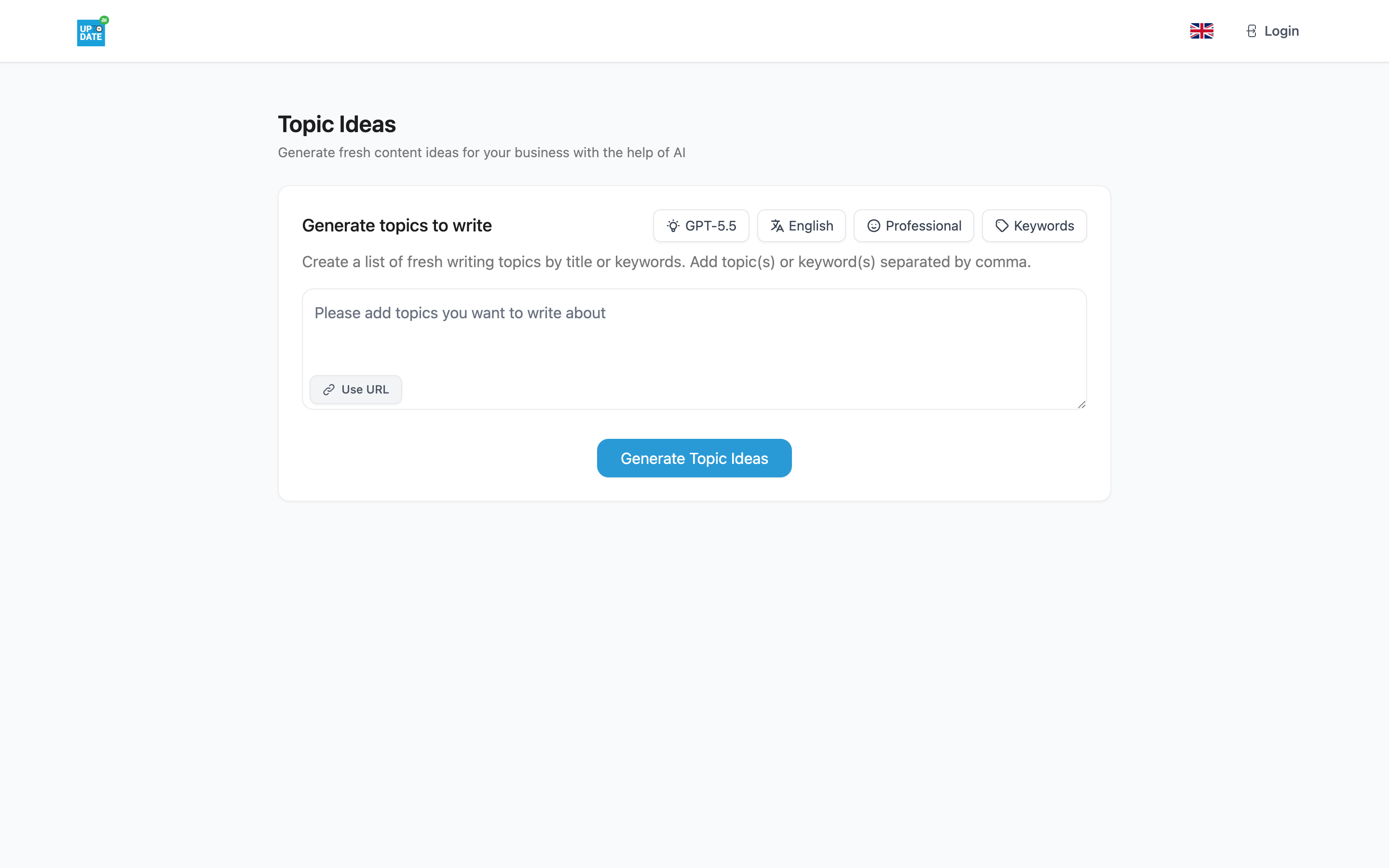
Topic Ideas generates lists of blog post titles for the selected company. It works from the company's AI Memory, and you can steer it with keywords or with an existing article. Click any title and the AI Writer starts a draft about it.
Before you start
Select the right company and website in the top bar. Topic Ideas uses that company's AI Memory and the website's language. See Choosing your company and website.
Opening Topic Ideas
Click the Topic Ideas card on the AI App dashboard. You find it in Most Used and in Keep your clients posted.
The screen is titled Topic Ideas: "Generate fresh content ideas for your business with the help of AI".
Setting the options
Above the input you see a row of option chips. Click a chip to change it, then click Apply.
Memory: which AI Memory the ideas are based on.
Model: the AI model. Your last choice is remembered in your browser.
Language: the language of the titles. It follows the website's language automatically.
Tone: for example Professional or Casual. Your last choice is remembered.
Keywords: keywords from the Keywords card in the company's AI Memory. Selected keywords show under Selected keywords:, where you can remove them.
Generating ideas from keywords
Under Generate topics to write, type one or more topics or keywords, separated by commas. For example: heat pumps, subsidies, renovation.
Click Generate Topic Ideas.
The field is optional. If you leave it empty, the AI works from the company's AI Memory alone.
Generating ideas from an article or text
Click Use URL.
Paste the address of an article, or paste the text itself.
Click Extract. When the page is read, you see "Content extracted successfully!" with the title and word count.
Click Generate Topic Ideas.
If you click Generate Topic Ideas without extracting first, the page is extracted automatically. To go back to keywords, click Use Keywords.
While the AI works
A "Generating" line appears with a Stop button. When the AI looks something up, a Researching... panel shows each step, for example "Reading your company memory…" or "Searching the web…". Click Stop to cancel.
What you get
The titles appear grouped by category, with the line "Click on any topic to start writing about it". The AI mixes different kinds of titles, such as questions, lists, how-to's, guides, case studies, comparisons and problem/solution pieces, so you don't get fifteen variations of the same title. The AI is instructed not to use the company name in titles.
Each time you generate again, the new list appears on top. After two or more runs, earlier lists stay available under Previous Versions as tabs (Version 1, Version 2 and so on), so you can compare rounds.
Important: Topic ideas are not saved. They disappear when you reload the page, leave it, or click a title. Copy any titles you want to keep before you move on.
From a title to a draft
Click a title in the list.
You see a message that the topic is selected, and the AI Writer opens.
The AI Writer starts writing right away: a short blog post (about 250 words) on that topic, in the same language, model and tone, with up to 5 keywords from the company's memory.
When the draft is ready you can regenerate it, copy it or send it to the blog editor. See Writing with the AI Writer.
Tip: Want a longer post? Open the AI Writer card, paste the title in Topic, and pick a larger Word Count Target before you generate.
Tips
Keep the company's AI Memory up to date, especially products, services and keywords. Better memory gives better titles. See Completing the company profile.
Use Use URL with a competitor's or sector article to find related angles for your client.
Planning several posts at once? Use the Post Planner to pick ideas per campaign and schedule them. See Using the Post Planner.