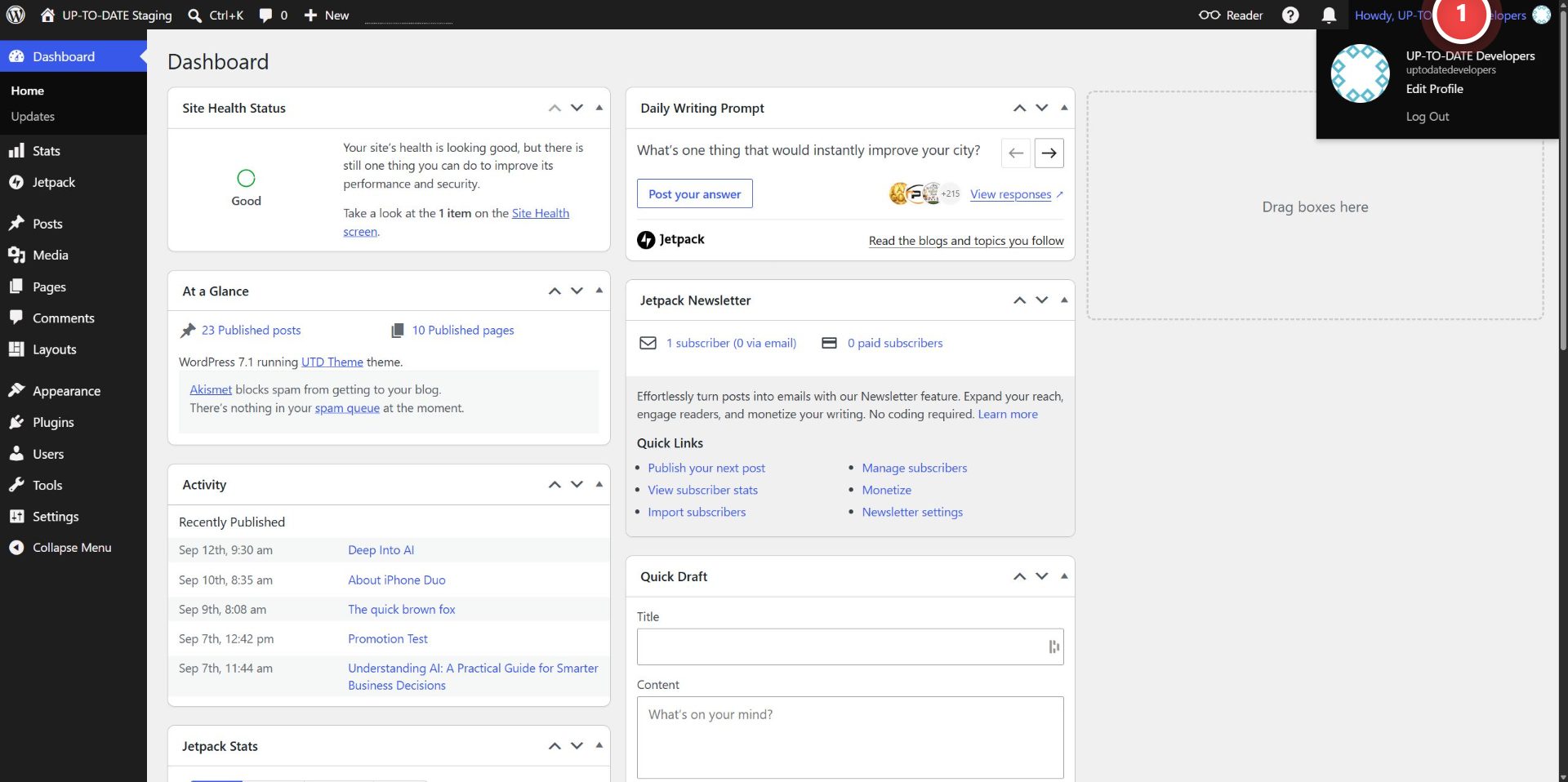
Step 1: Go to your user profile
In your WordPress admin panel, go to your user profile by clicking on your WordPress name at the top-right section of the page.
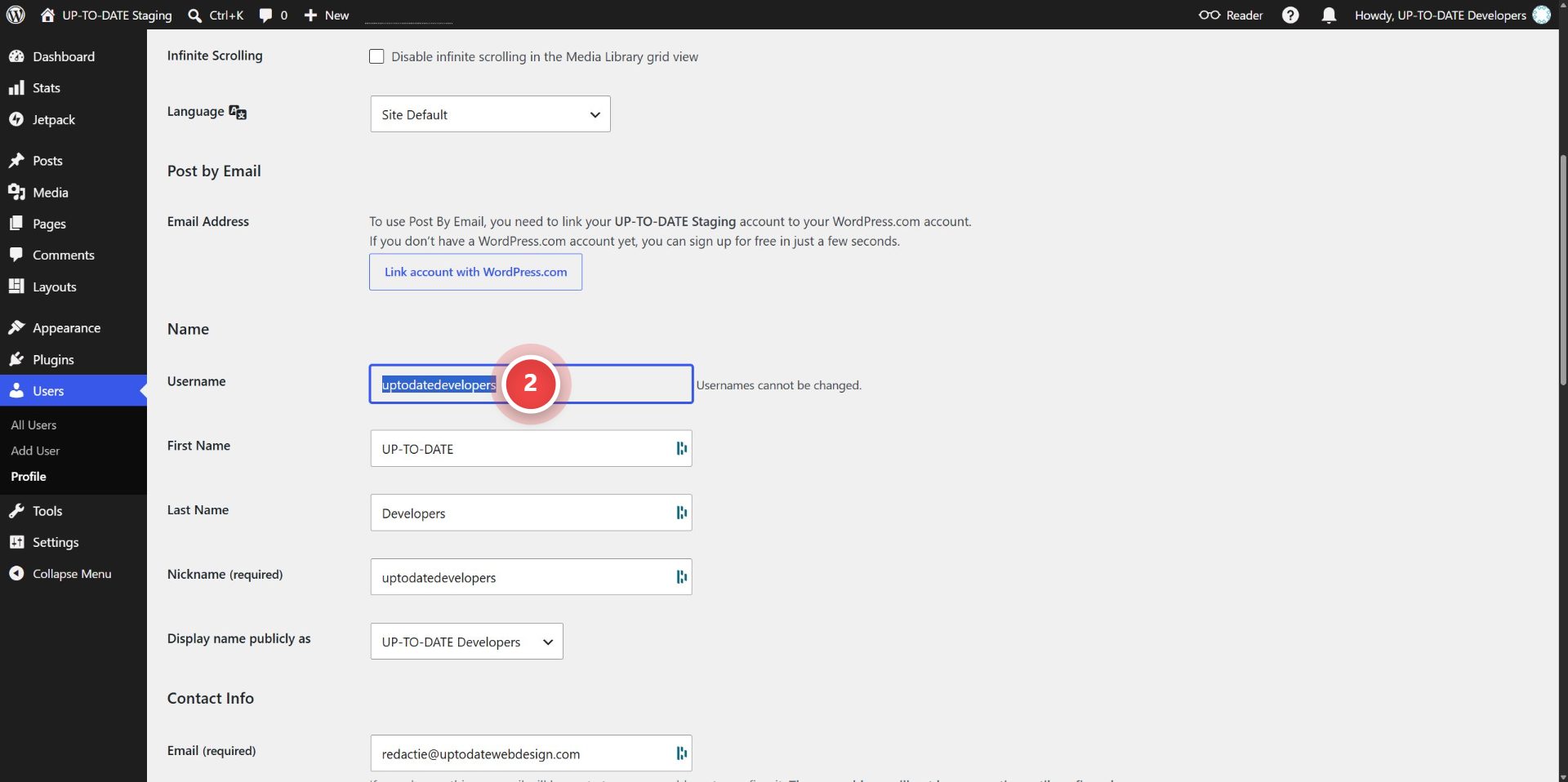
Step 2: Find your username
Find your username in the profile page. This will be used to connect your WordPress page.
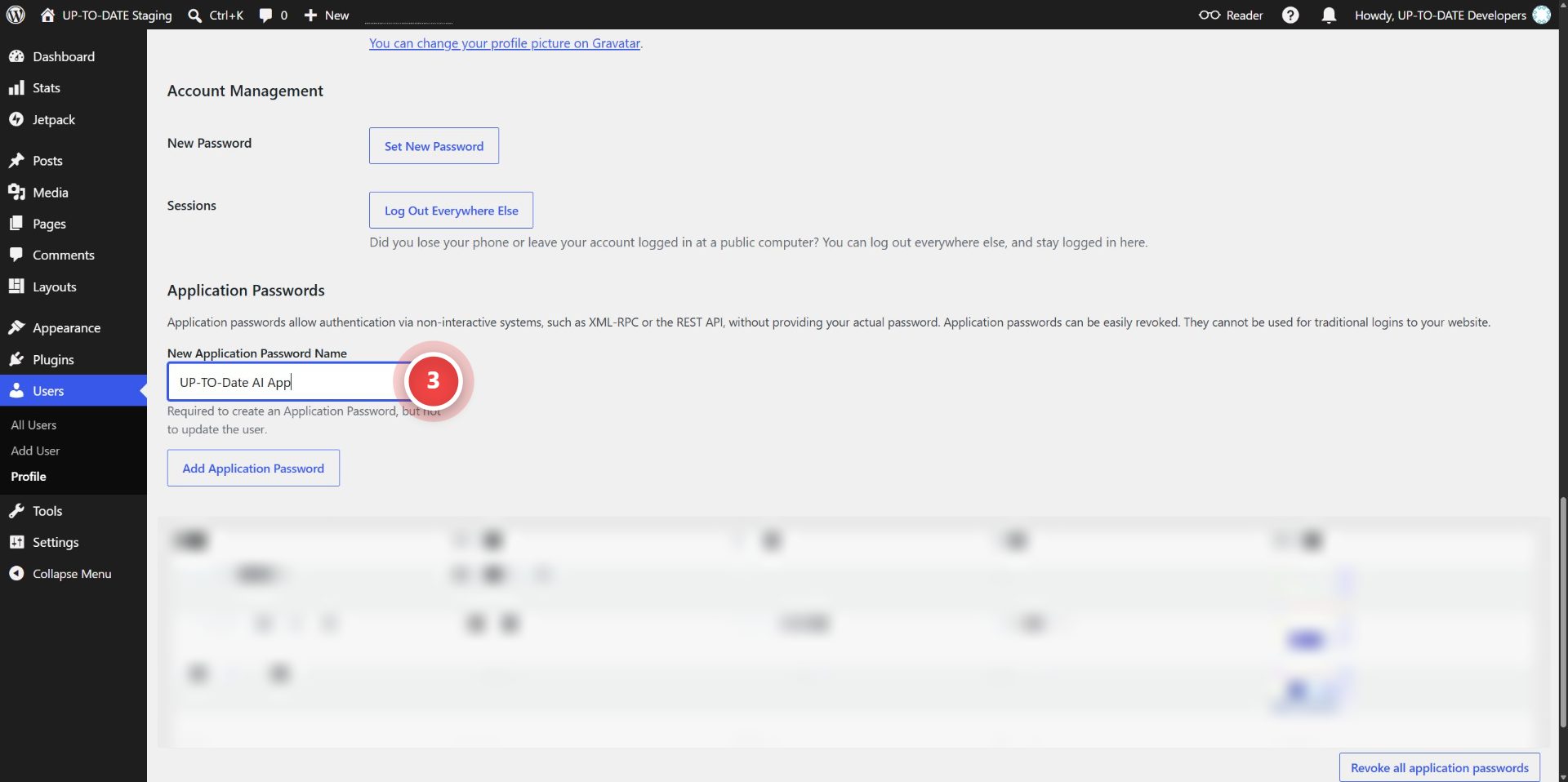
Step 3: Set your application password
Enter the name of your application password
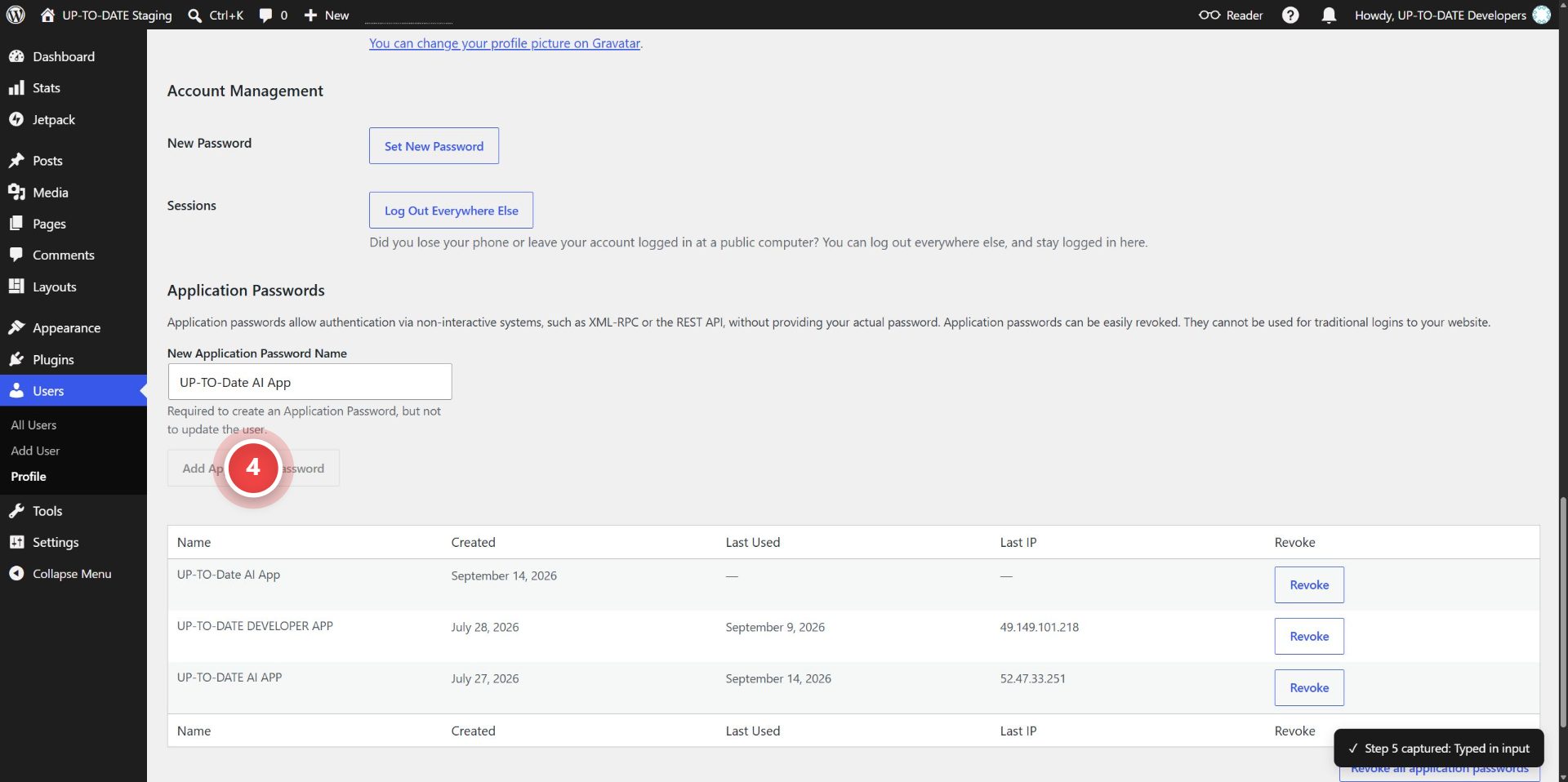
Step 4: Click "Add Application Password"
Click on the "Add Application Password" button on the page.
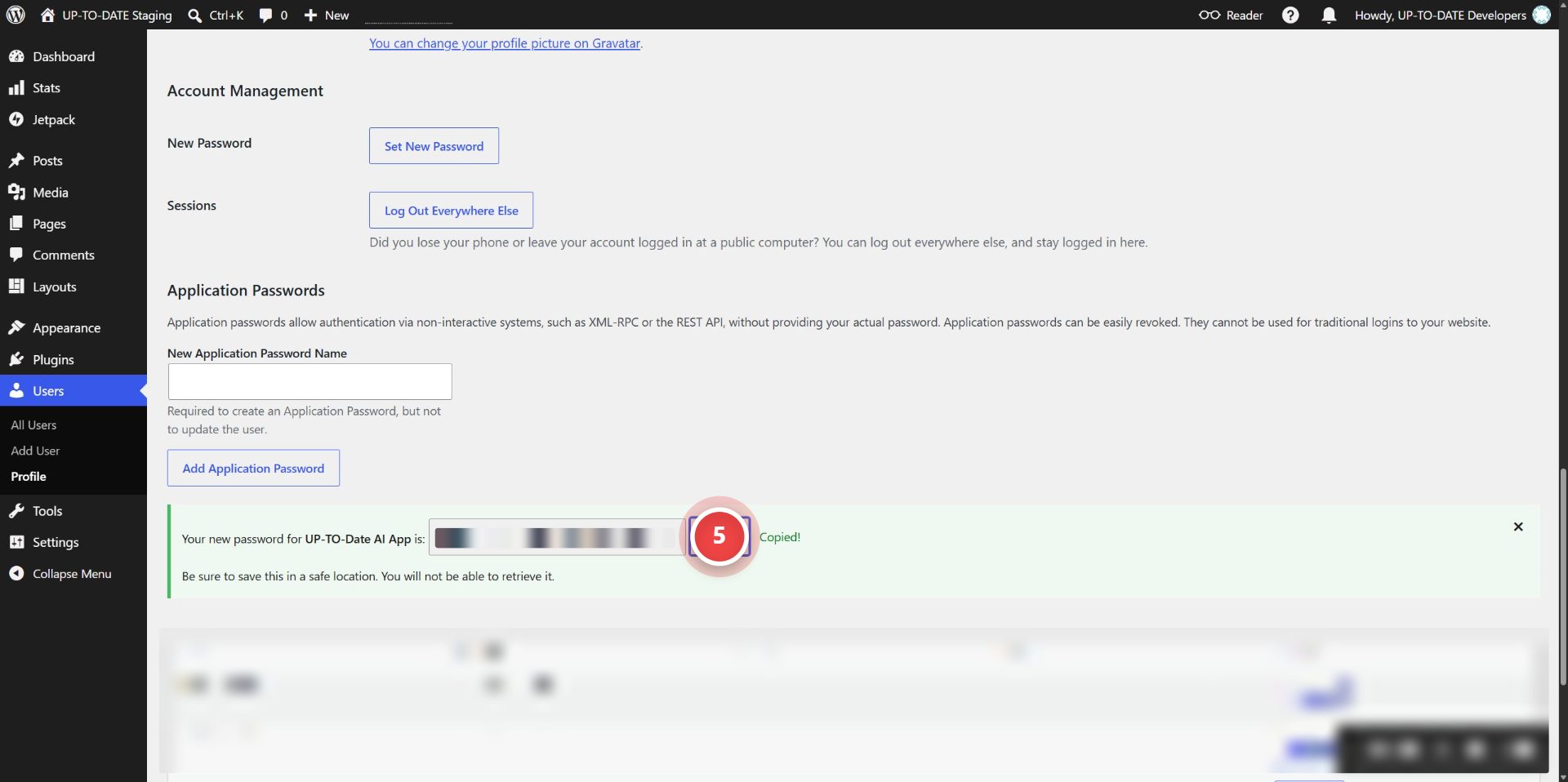
Step 5: Copy Application password
Once the application password is generated, click on "copy" and save it somewhere safe.
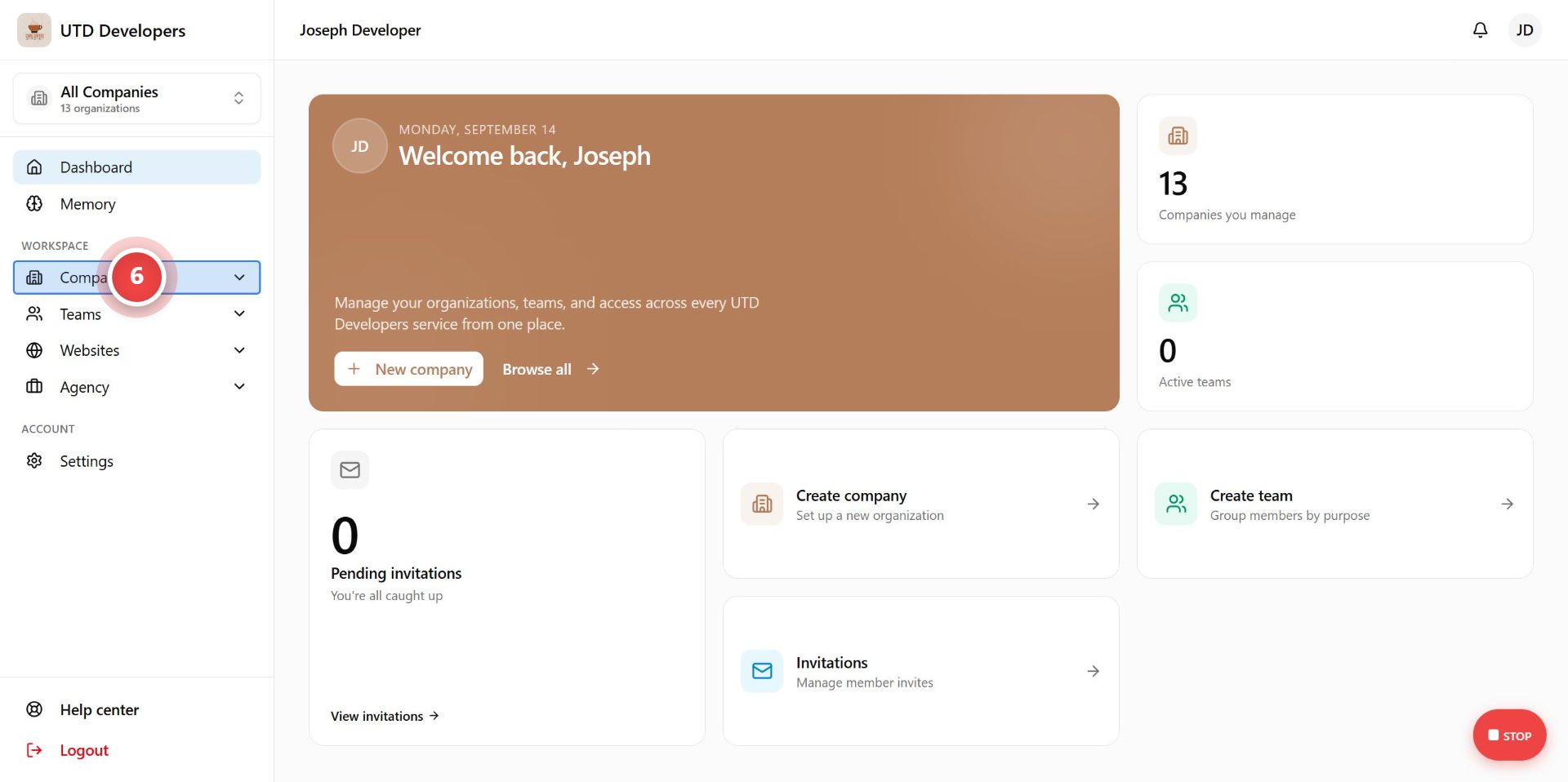
Step 6: Click "Companies"
Go back to the company where you wish to connect the site.
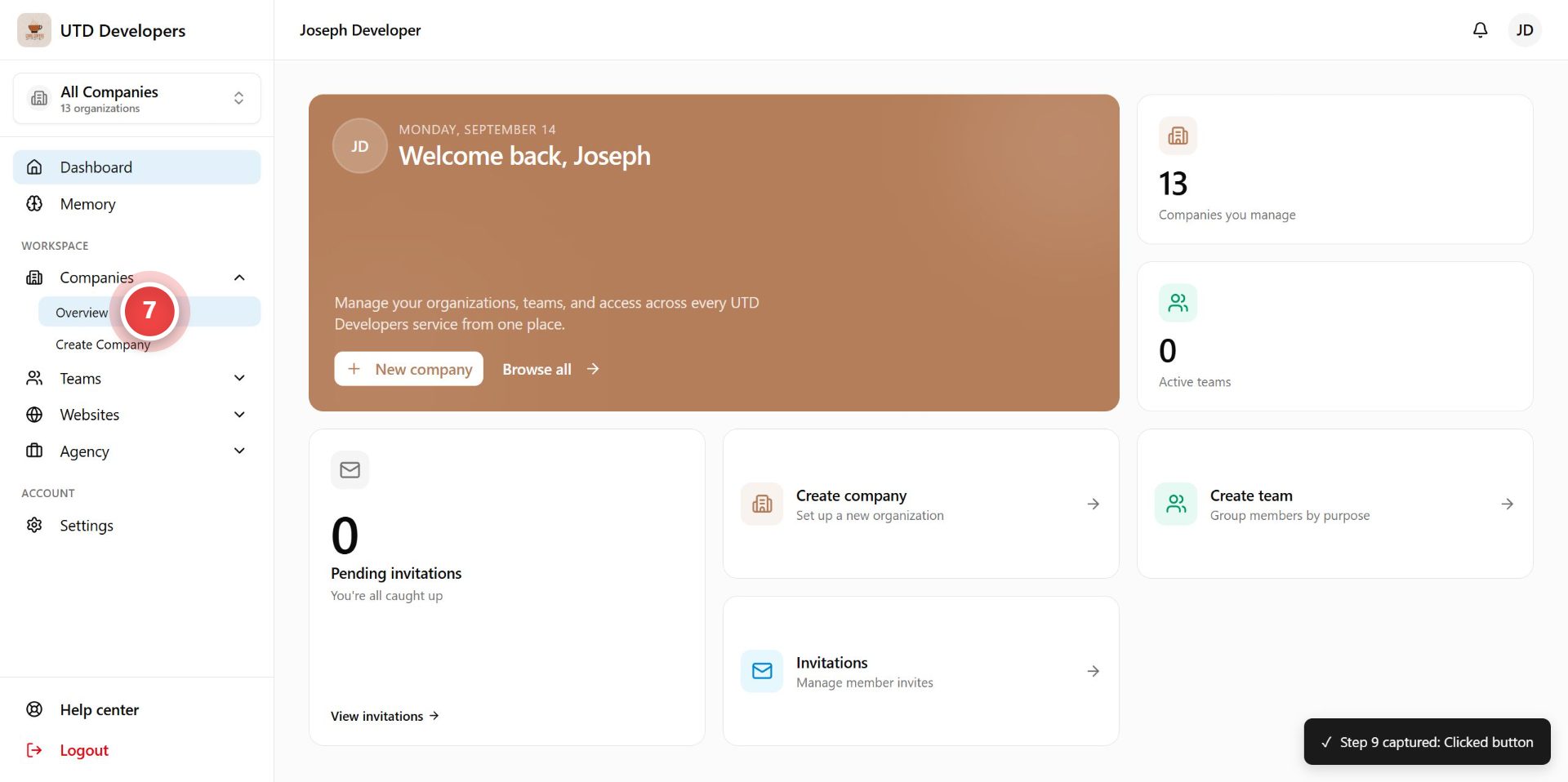
Step 7: Click "Overview"
Click on the "Overview" a on the page.
Step 8: Click on the company where you want to connect the site
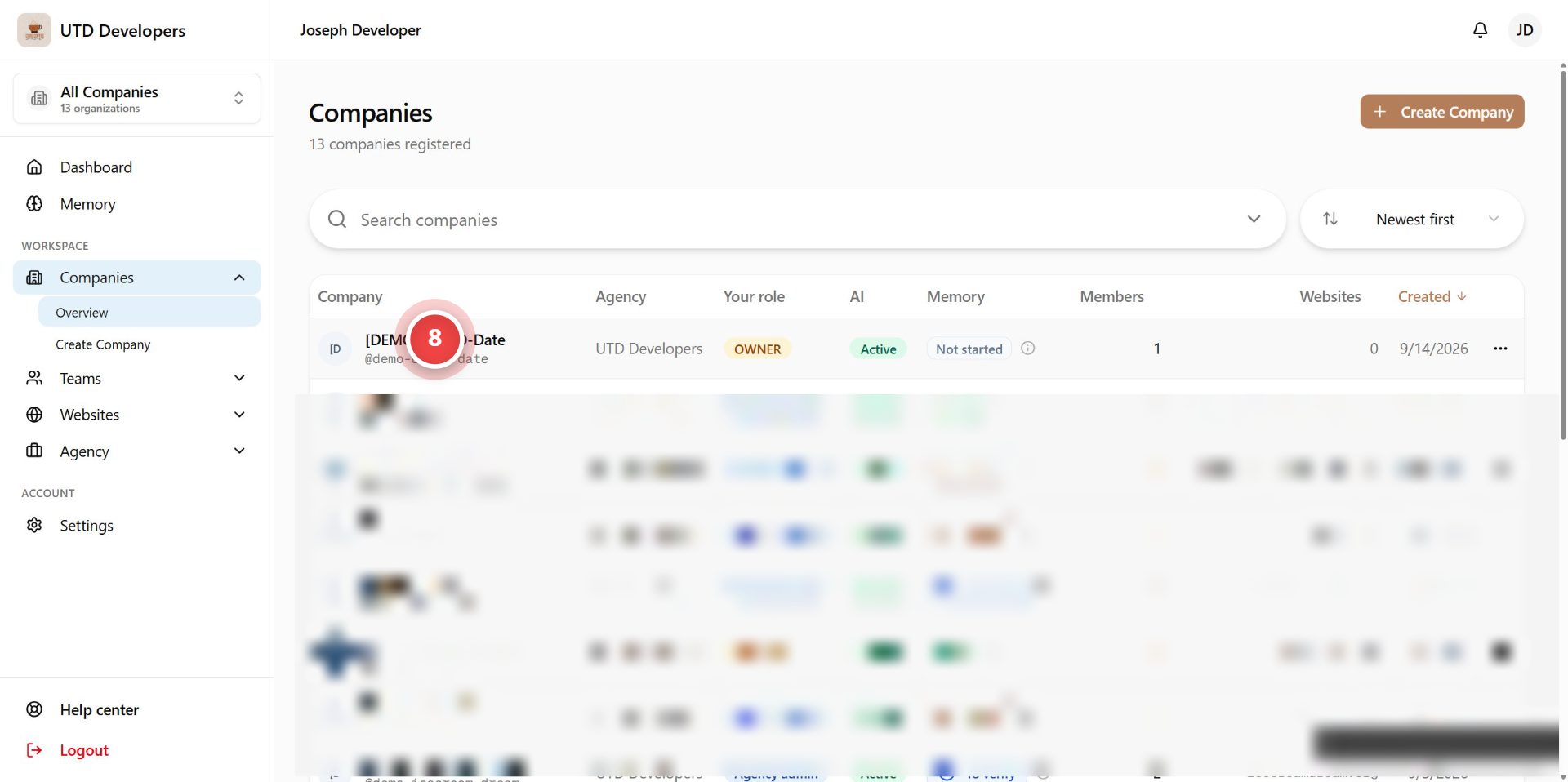
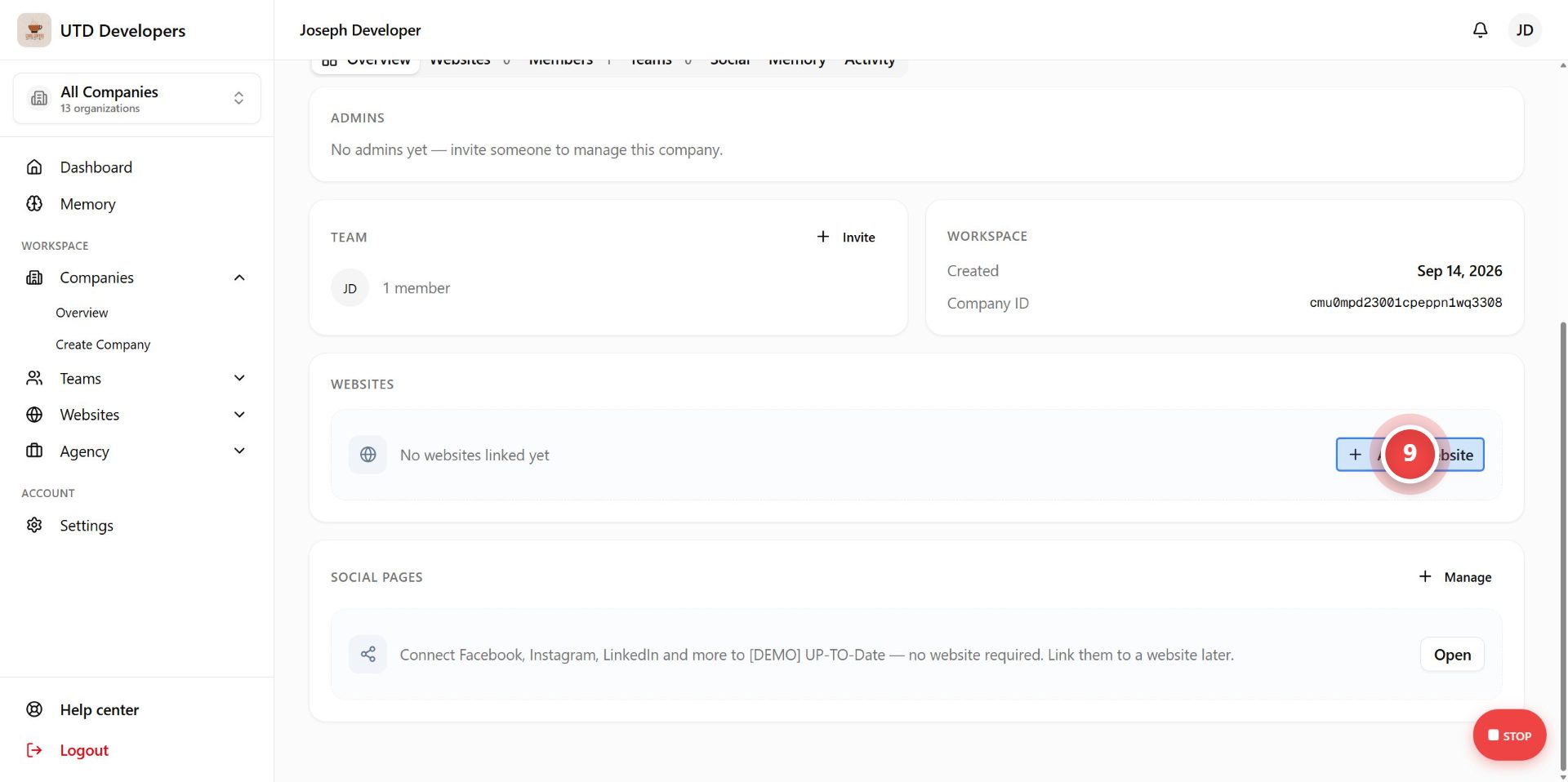
Step 9: Click "Add a website"
Click on the "Add a website" button on the page.
Step 10: Enter the site URL
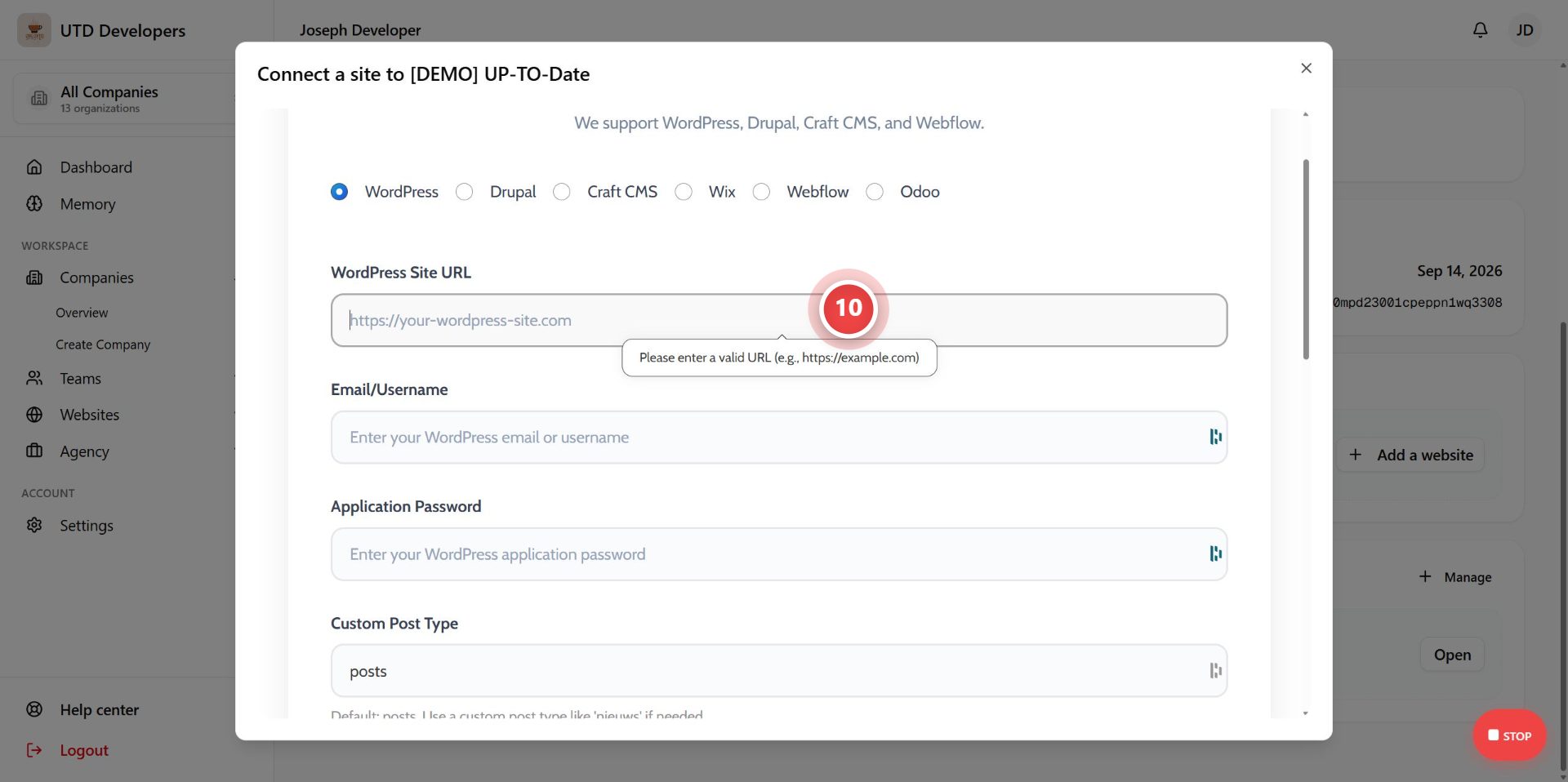
Step 15: Enter text in https://your-wordpress-site.com
Enter the required information in the "https://your-wordpress-site.com" input.
Step 11: Enter the WordPress username.
Enter the WordPress username. You may also use the email associated with that username.
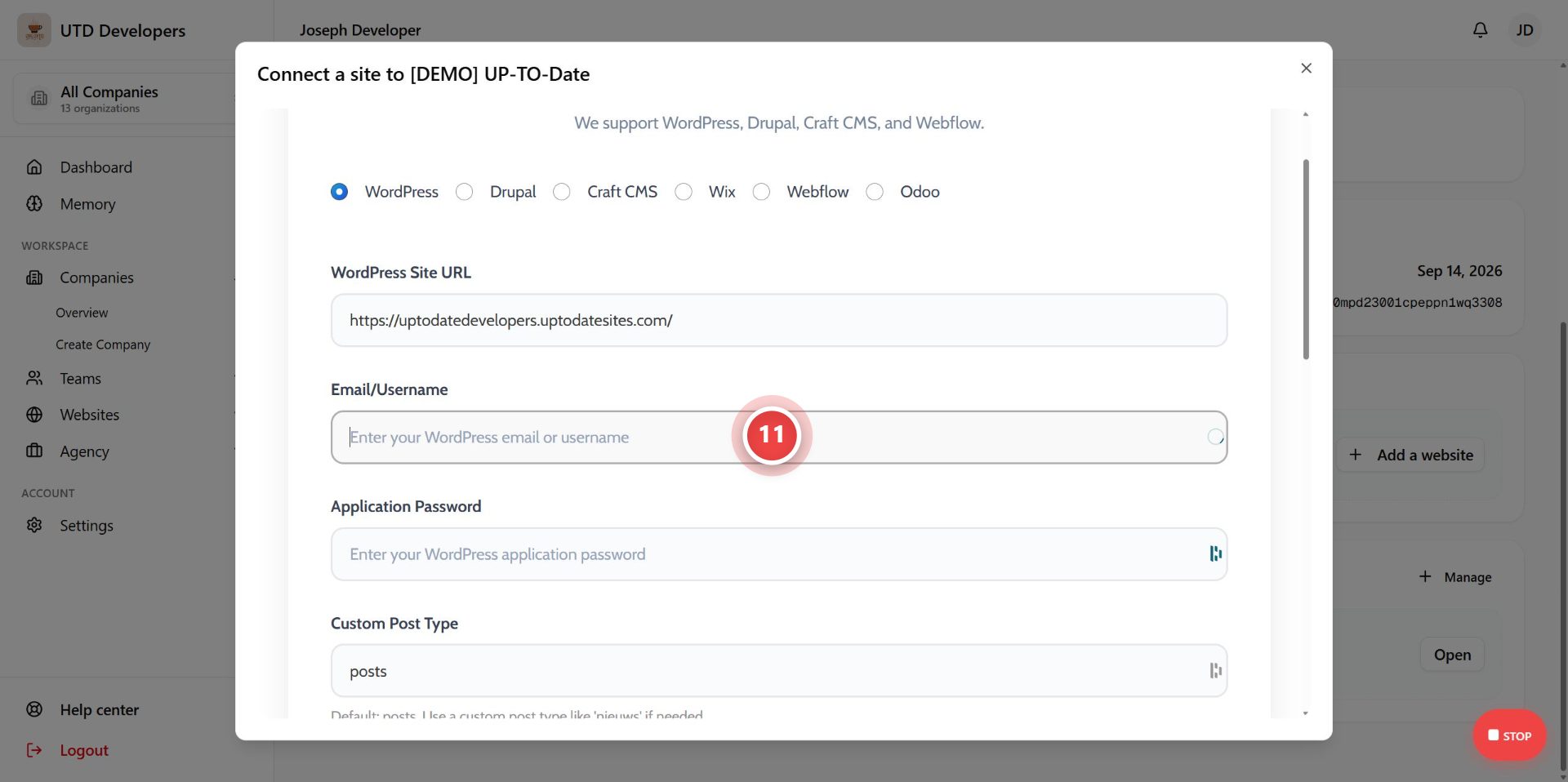
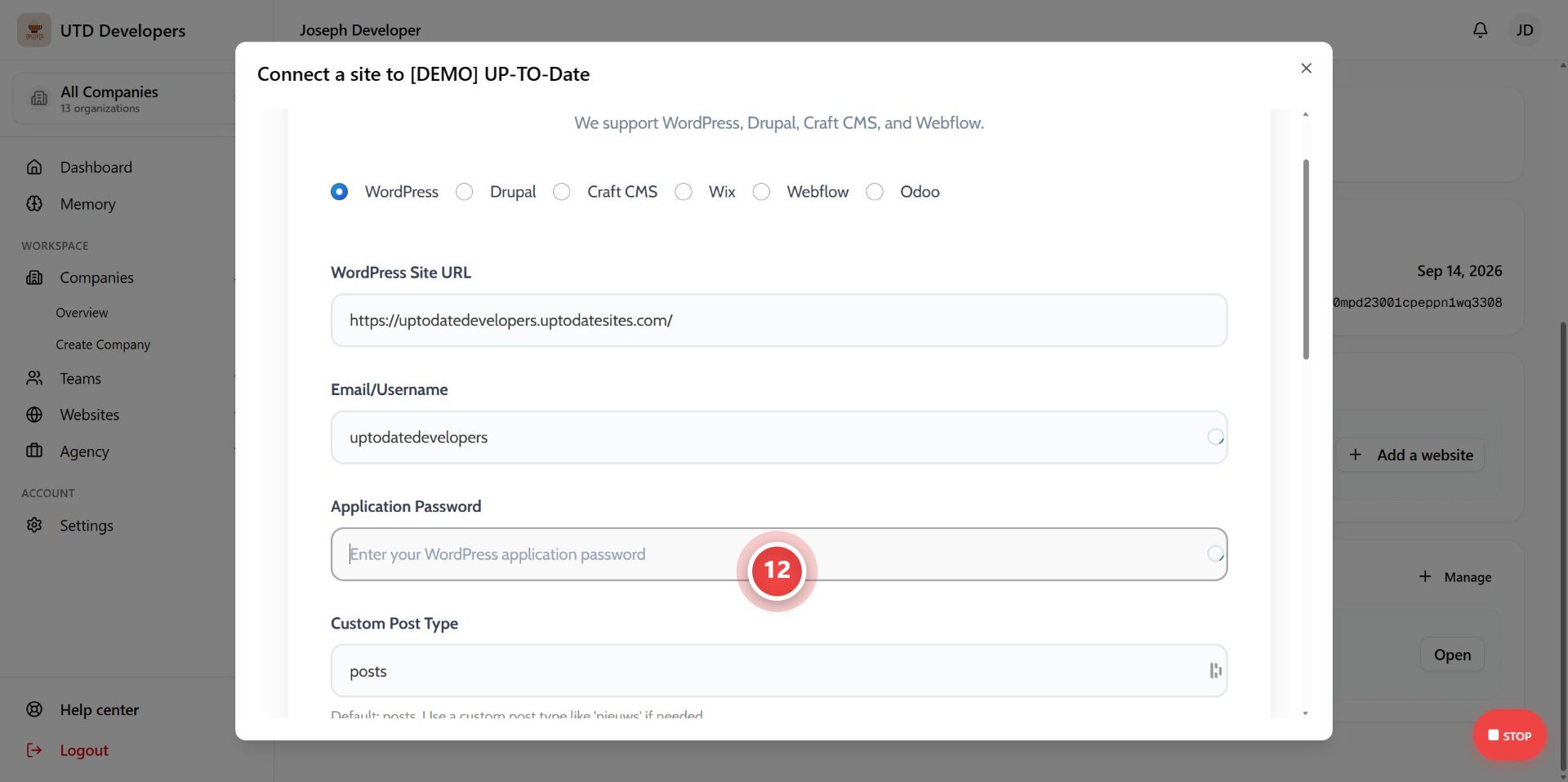
Step 12: Add the application password
Step 20: Click "Test Connection"
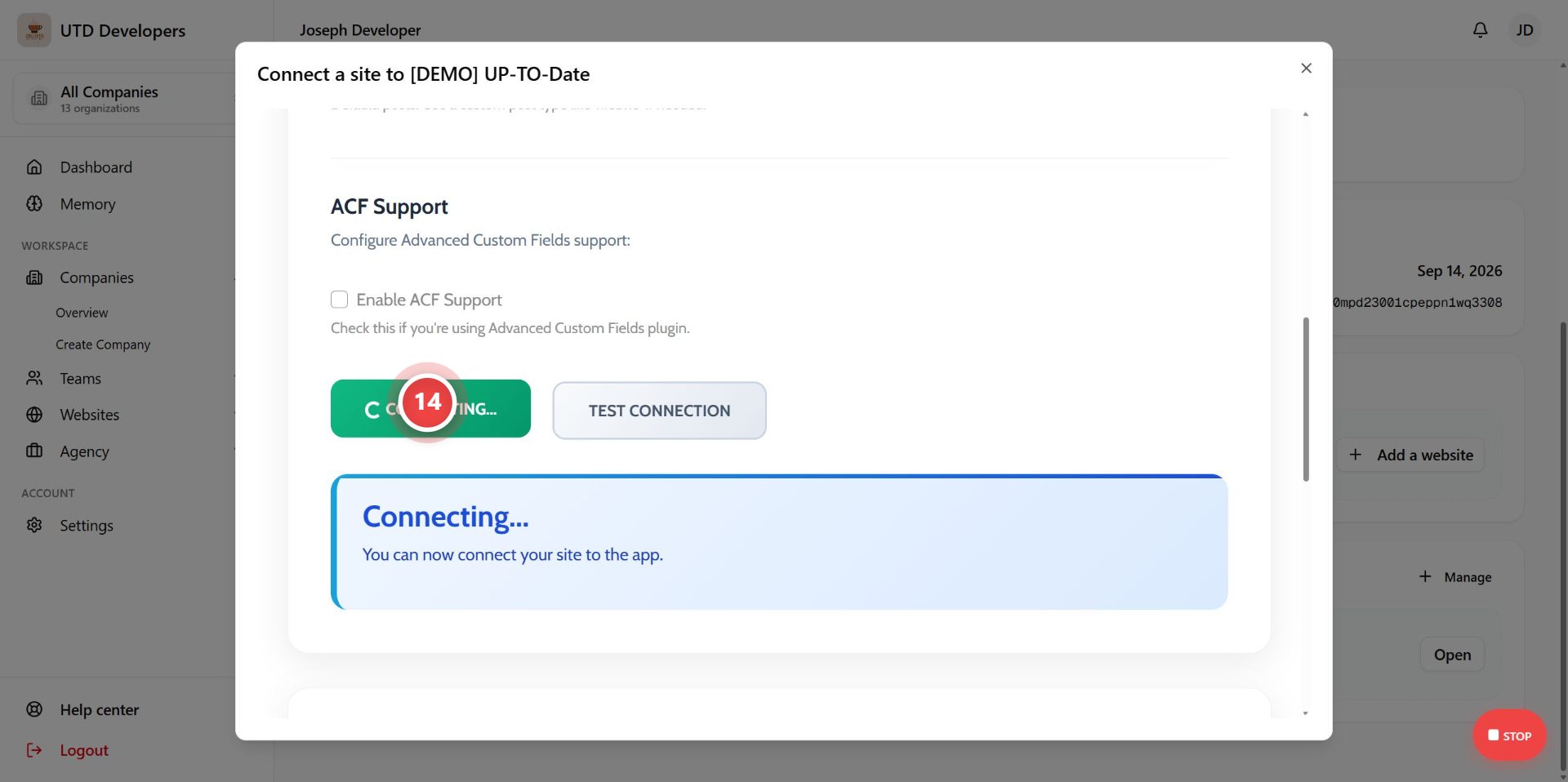
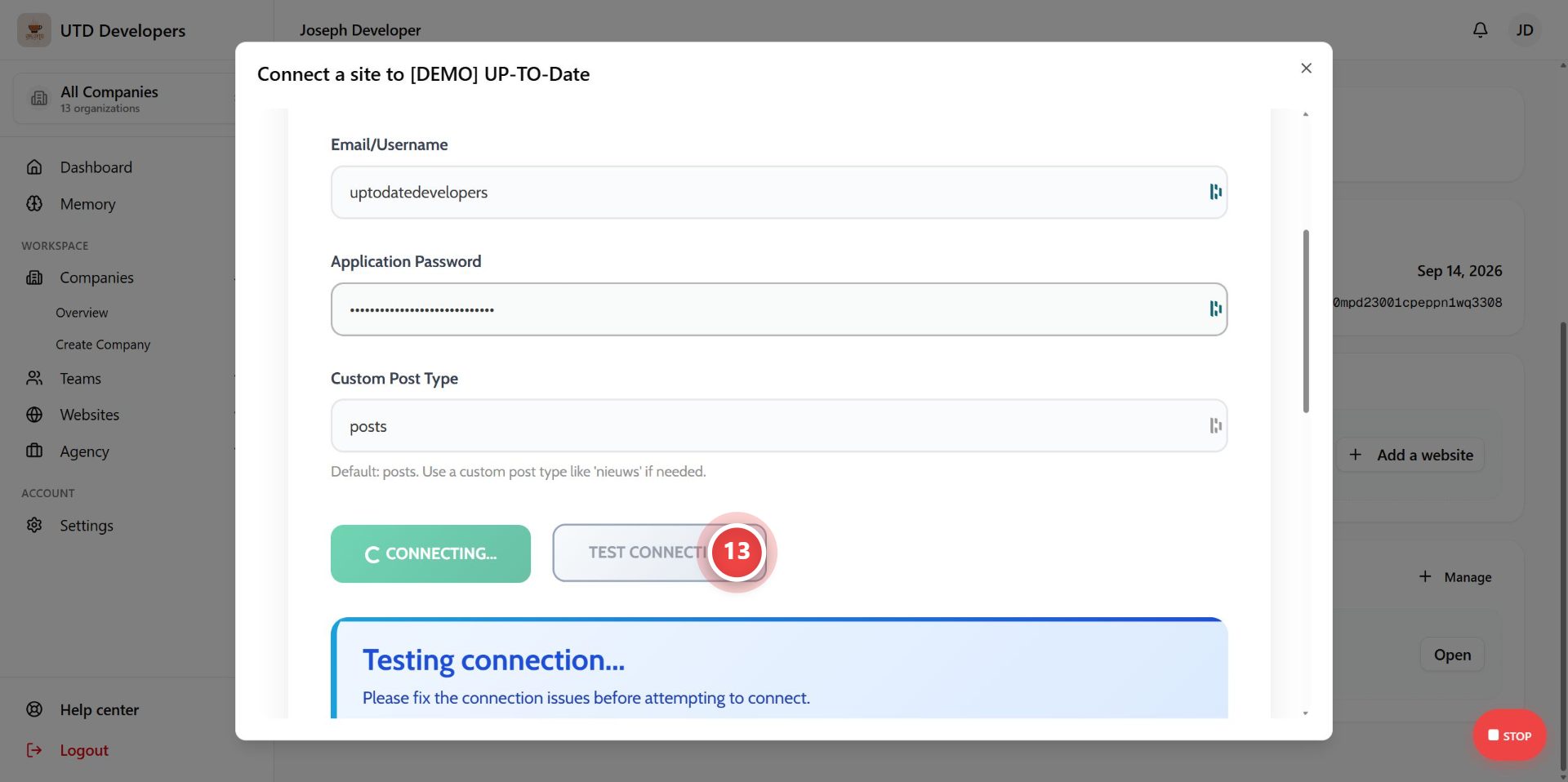
Click on the "Test Connection" button on the page. This ensures that our backend can communicate with the company's WordPress site.
Step 21: Click "Connect"
Click on the "Connect" button on the page.